
Want to keep your private apps away from prying eyes? In this guide, we’ll show you how to hide apps and their widgets on your iPhone or iPad Home Screen, allowing access only with Face ID or Touch ID authentication.
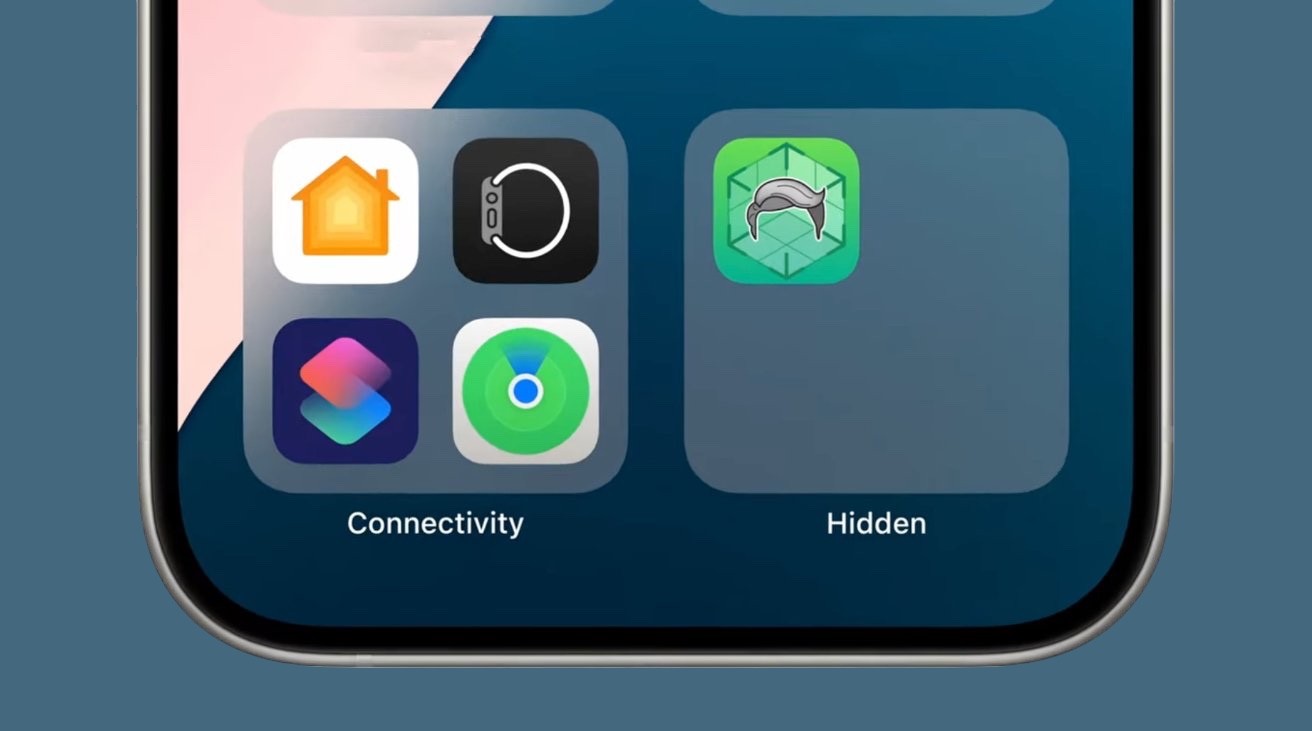
Hidden Folder in App Library on iOS 18
iOS 18 and iPadOS 18 introduce a built-in feature to hide apps behind a lock. In addition to this, notifications and calls from hidden apps are blocked, further enhancing your privacy.
Caution: iOS 18 and iPadOS 18 are currently in the developer beta stage and may contain bugs. For instance, when I hid WhatsApp on my iPhone, it reset the app completely, deleting all data. Thankfully, I had a backup!
Hide Apps on iPhone or iPad
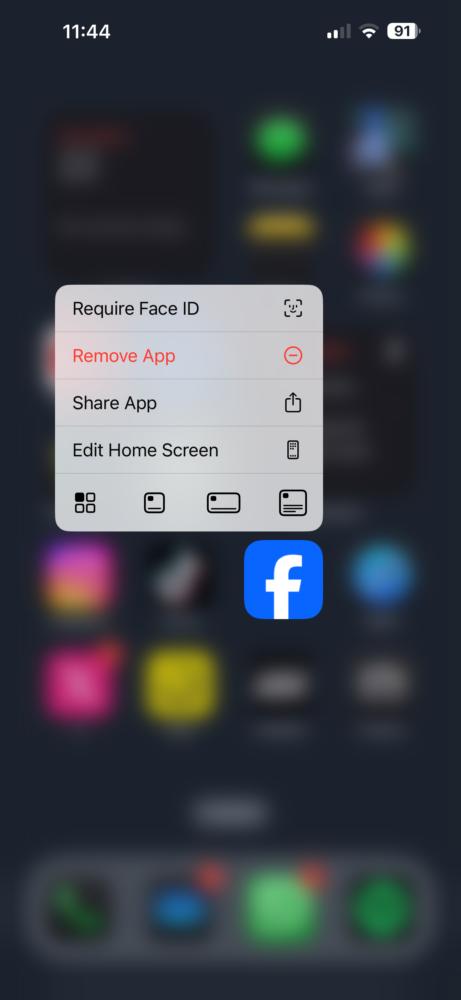
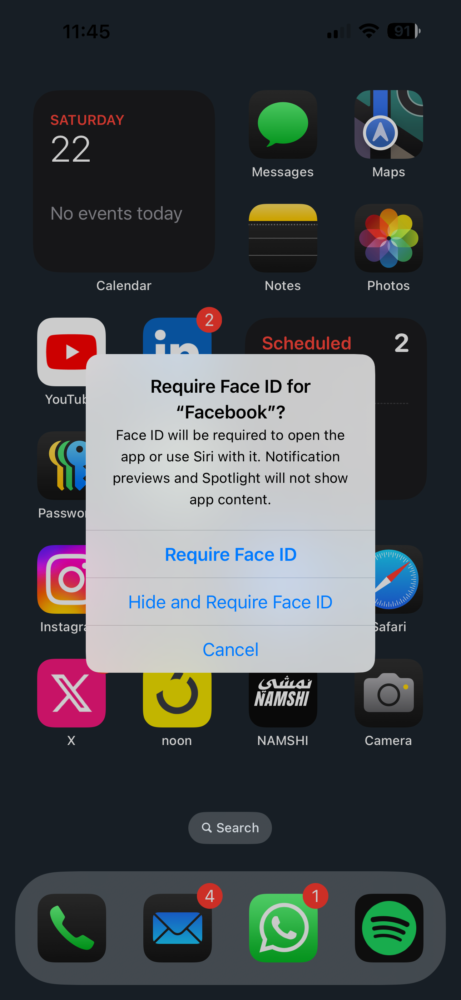
- On the iOS 18 Home Screen or App Library, touch and hold an app icon and select “Require Face ID” (or Touch ID).
- Tap “Hide and Require Face ID” and authenticate with Face ID.
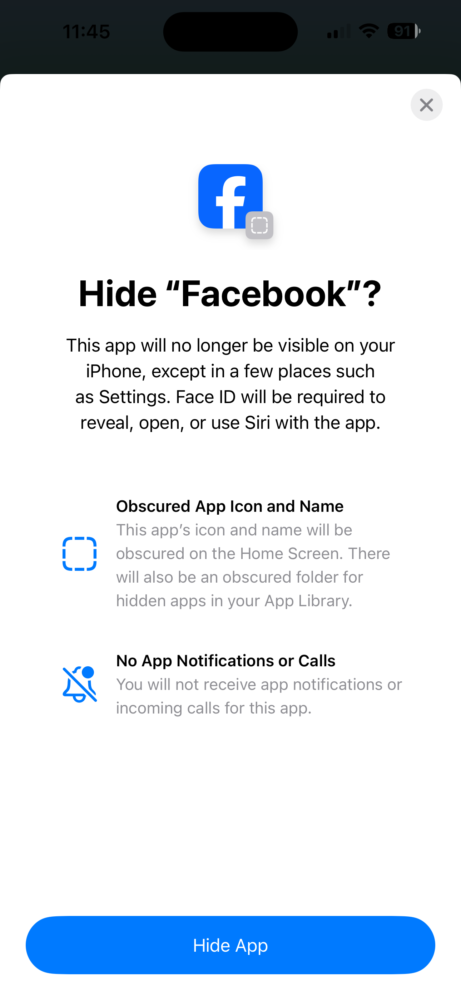
- Follow the prompts on the “Hide [app name]” screen and tap “Hide App.”
Some Apps Can’t Be Hidden
Core Apple apps cannot be hidden, though many can be deleted. However, apps like iMovie, Keynote, Numbers, Pages, and Apple Music Classical can be hidden. When you touch and hold the icon for an app that can’t be hidden, you will only see the option to lock it with Face ID.
What Happens After You Hide an App in iOS 18
- Authentication with Face ID or Touch ID is required to reveal and open hidden apps. If Face ID or Touch ID fails multiple times, iOS 18/iPadOS 18 will prompt for the device passcode.
- The app is removed from the Home Screen.
- Widgets for the hidden app are removed from the Home and Lock Screens.
- Notifications and calls from the hidden app are blocked.
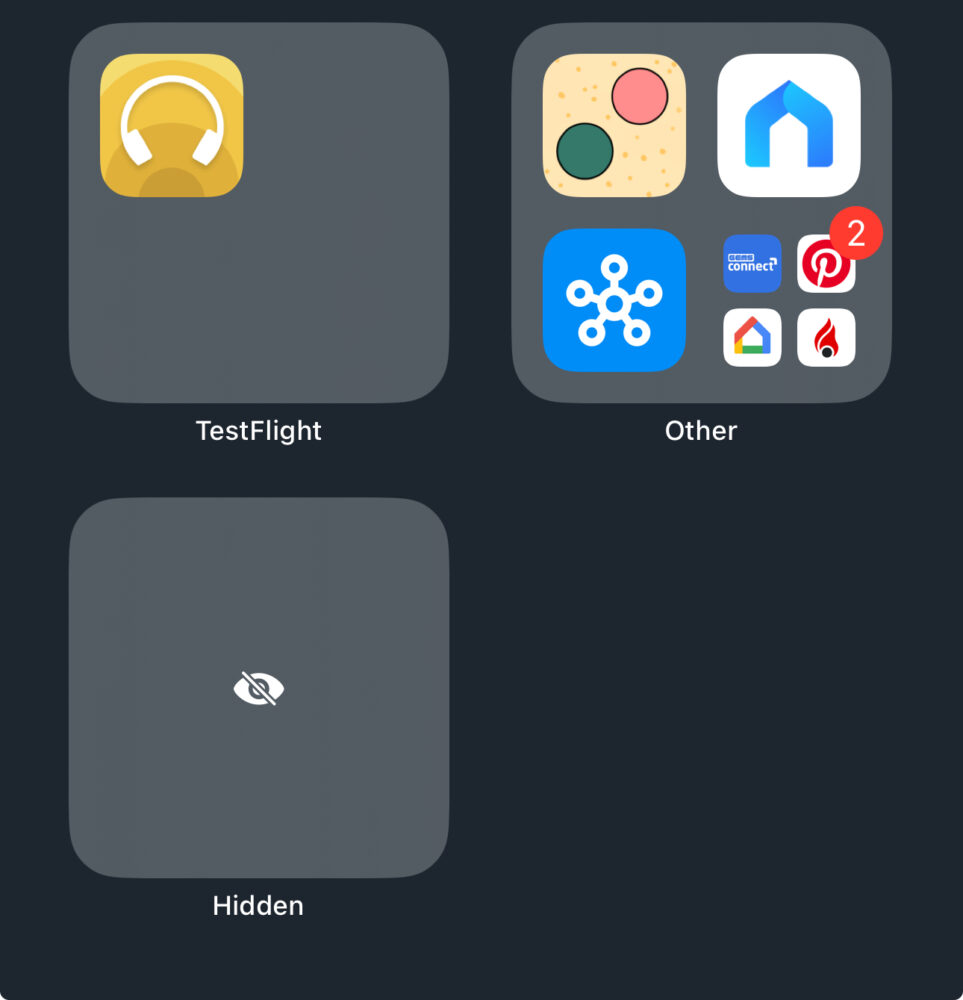
- A new Hidden folder appears in the App Library containing the hidden app.
- Hidden apps will not appear in Settings > Apps but may still show up in certain sections like Privacy & Security and Cellular.
View and Open Hidden Apps
- Go to the App Library and tap the Hidden folder at the bottom.
- Authenticate with Face ID or Touch ID.
- The hidden app icons will become visible.
Unhide Hidden Apps There are two ways to unhide apps:
- Don’t Require Face ID
- Go to the App Library and reveal the hidden apps.
- Touch and hold the app icon and tap “Don’t Require Face ID” to unhide it.
- Add Back to Home Screen
- Go to the App Library and reveal the hidden apps in the Hidden folder.
- Touch and hold a hidden app icon and choose “Add to Home Screen.”
- Tap “Unhide App” to confirm.
After unhiding an app, it will become visible in all usual locations, such as Settings > Apps.
Hiding Apps on Multiple Devices Hiding apps is specific to each device. If you hide apps on your iPhone, they will not be hidden on your iPad, even if both are running iOS 18/iPadOS 18 and signed in to the same Apple ID.
Locking vs. Hiding Apps in iOS 18 You can lock an app without hiding it, but hiding an app automatically locks it. Locked apps require biometric authentication or a passcode to open but remain visible on the Home Screen and send notifications without previews.