
Screenshots: they’re a fantastic way to capture exactly what’s on your screen. Whether you need a quick reference of your settings, want to share a funny website goof with friends, or create detailed tutorials, knowing how to take screenshots on your Mac is a valuable skill. Luckily, macOS makes this process easy with several built-in tools and keyboard shortcuts. Plus, there’s always the option of using powerful third-party apps for extra features.
In this guide, we’ll cover everything you need to know about taking screenshots on your Mac, including:
- Keyboard Shortcuts: The fastest and simplest method.
- The Screenshot App: A versatile built-in tool.
- Using Preview: Handy for screenshots from image and PDF files.
- Third-Party Apps: Going beyond the basics with added features.
Before You Start: Enable Keyboard Shortcuts
Let’s make sure those handy keyboard shortcuts are ready to use:
- Open System Settings (the gear icon in your Dock or via Apple menu).
- Click on Keyboard in the sidebar.
- Select Keyboard Shortcuts and then the Screenshots tab.
- Ensure all the boxes for your desired shortcuts are checked.
Method 1: Keyboard Shortcuts
Keyboard shortcuts are the quickest way to snap a screenshot on your Mac. Here are the essentials:
- Full Screen Screenshot:
- Press Cmd + Shift + 3
- You’ll hear a camera shutter sound, and a thumbnail will briefly appear in the corner of your screen. This is saved as a PNG file on your desktop.
- Partial Screen Screenshot:
- Press Cmd + Shift + 4
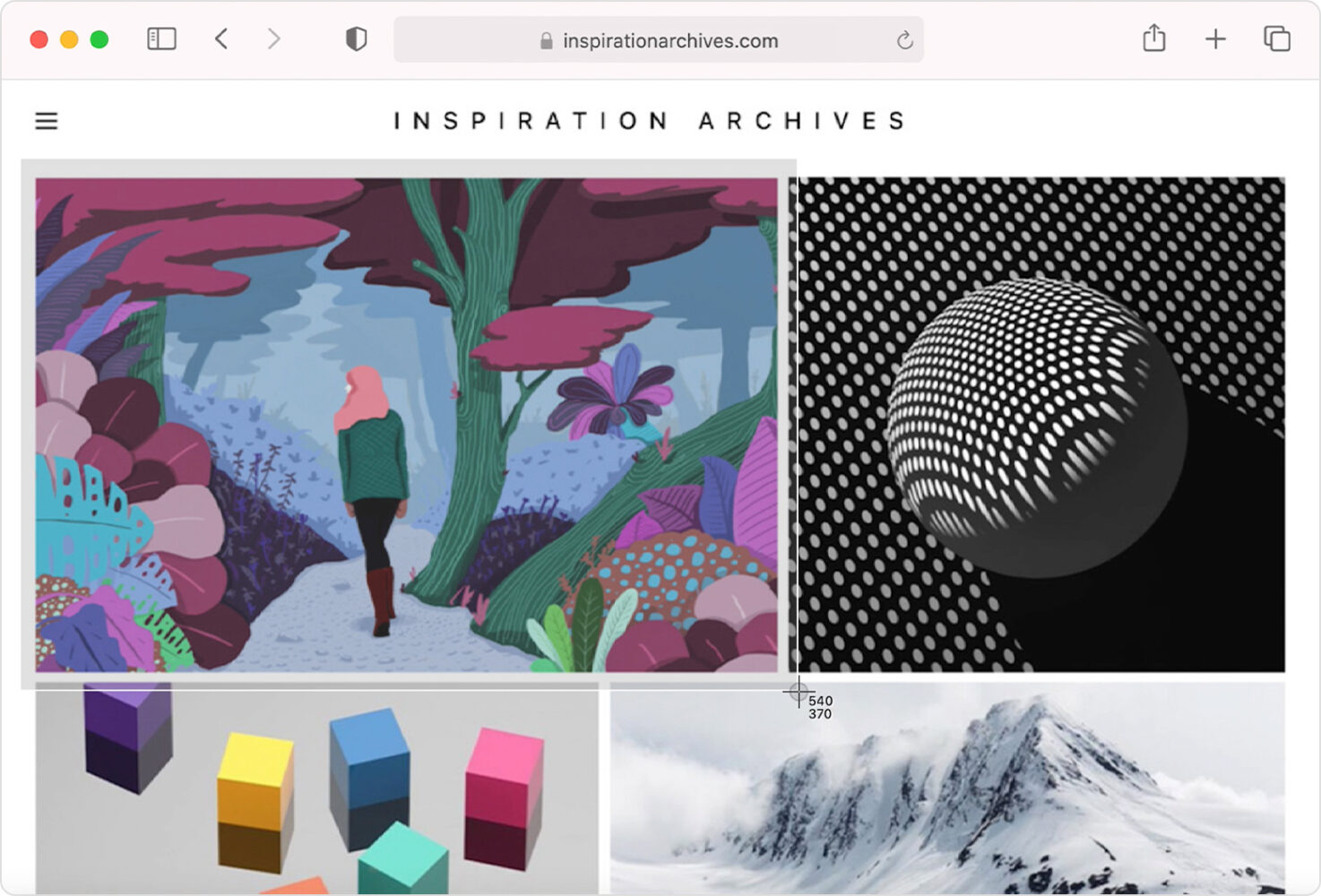
- Your cursor becomes a crosshair. Click and drag to select the area you want.
- Tips:
- Hold Shift to constrain proportions along one axis.
- Hold Option to resize from the center.
- Hold Space to move your selection without resizing.
- Hit Esc to cancel before releasing your mouse/trackpad.
- App Window Screenshot:
- Press Cmd + Shift + 4 then hit Space
- The cursor changes to a camera. Click on the window you want to capture.
What Happens to Your Screenshot?
- Thumbnail: A small preview appears in the corner. Click it to edit or delete quickly.
- Auto-Save: If you do nothing, it’s saved to your desktop (usually as a PNG file).
- Clipboard Copy: For pasting directly into other apps without saving, add Controlto any shortcut (e.g., Control + Cmd + Shift + 4).
Method 2: The Screenshot App
Need more options or a slower, visual approach? This is where the Screenshot app shines:
- Launch it from Finder > Applications > Utilities or press Cmd + Shift + 5.
- A small toolbar appears at the bottom of your screen. Here’s what you can do with it:
- Capture Entire Screen, Selected Window, or Selected Portion: These mimic the keyboard shortcuts.
- Record Entire Screen or Selected Portion: Great for creating screen recordings.
- Options:
- Timer: Choose 5 or 10-second delays before your screenshot is taken.
- Save To: Change the default desktop location
- Show Thumbnail: Disable the preview after you take a screenshot.
- Remember Last Selection: Ideal if you take many similar screenshots.
- Show Mouse Pointer: Useful for visual instructions.
Method 3: Take Screenshots with Preview
Preview, the standard image/PDF viewer on macOS, can also take screenshots of files you open with it:
- Open the image/PDF in Preview.
- Go to File > Take Screenshot.
- Choose between From Selection, From Window, or From Entire Screen.
Key Advantages of Preview:
- Editing: Instantly annotate your screenshot with text, shapes, etc.
- File Format Control: Change format (PNG, JPEG, etc.) with each screenshot.