

Ring Familiar Faces has started rolling out in the UAE, bringing facial recognition to compatible Ring video doorbells and security cameras. The feature can recognise people you’ve identified and replace a generic “Person at Front Door” notification with an alert containing that person’s name.
It’s an opt-in feature, which means it won’t suddenly start recognising visitors without you enabling it first. You’ll also need a compatible Ring device and subscription. In the UAE, Familiar Faces is available with eligible 2K, 4K and selected HD devices, while Ring’s UAE subscription page lists the feature under Ring Pro and its Pro Intelligence add-on.
Here’s how to get it running.
First, update the Ring app on your phone to the latest available version. Familiar Faces is rolling out progressively in the UAE, so don’t panic if the setting hasn’t appeared yet despite having compatible hardware and a qualifying subscription. Ring notes that feature availability can depend on app update timing.
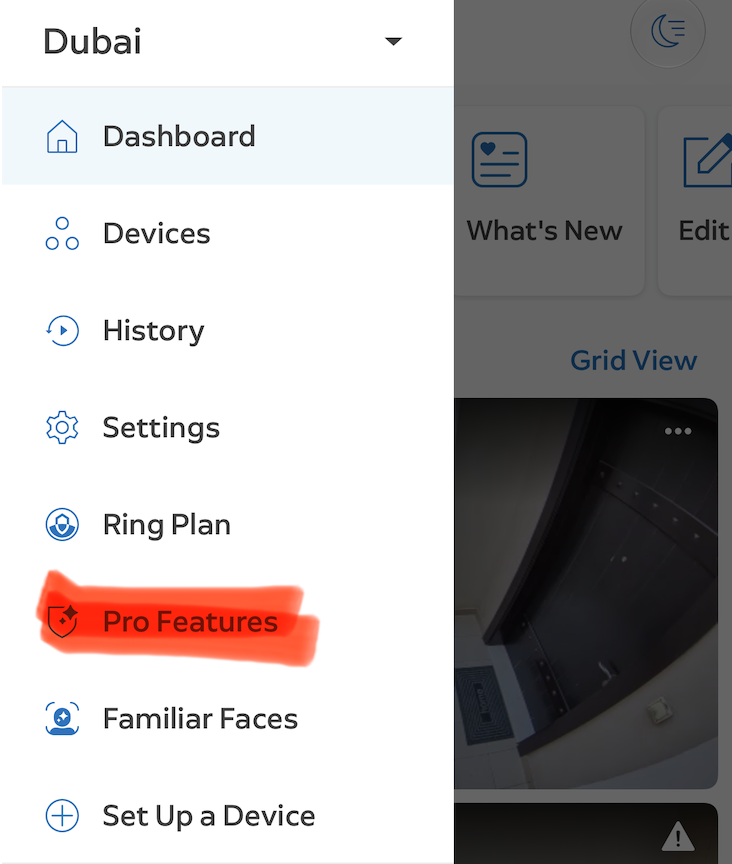
Open the Ring app and head to the main Dashboard. Tap the menu icon (☰), then select Pro Features. The first time you enter this section, you may be asked to review and consent to using Ring’s intelligent features.
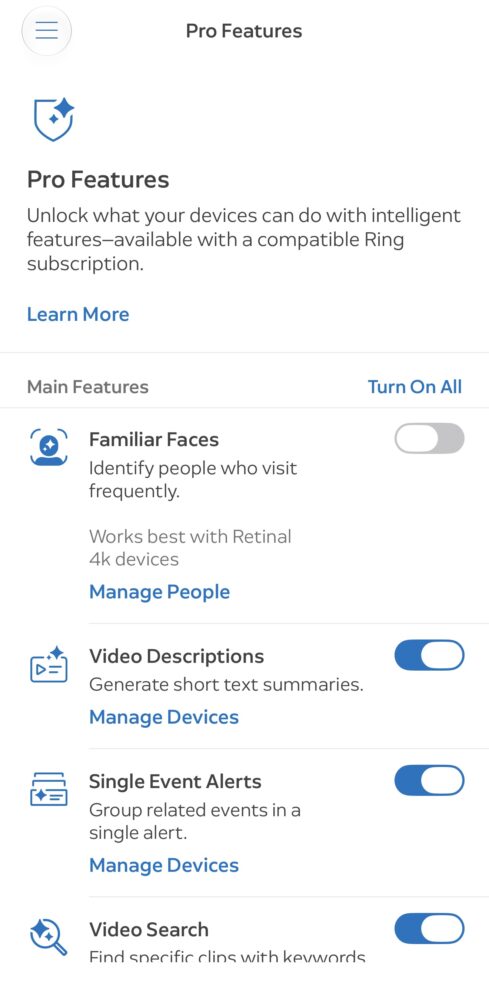
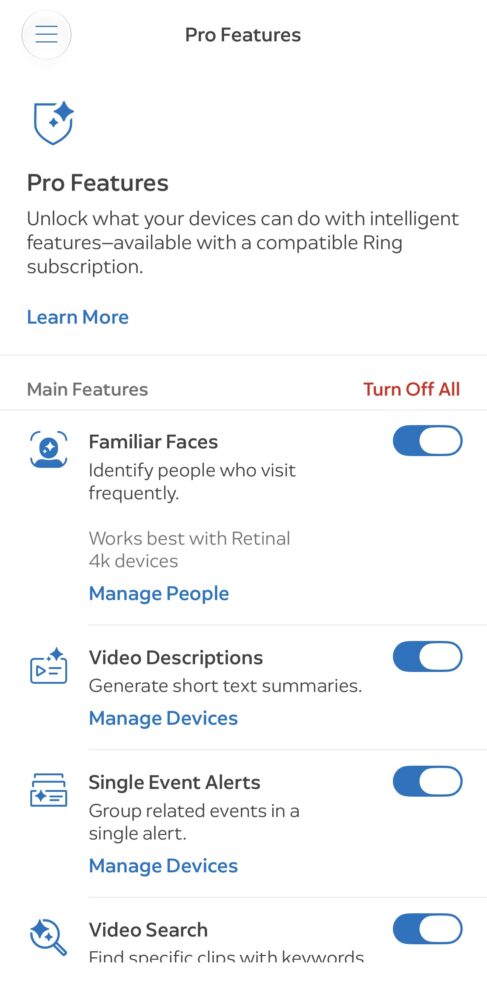
You can then tap Turn on All if you want to activate the available Pro features across your devices, or choose Customize to decide which features and devices you want enabled. Familiar Faces can be controlled individually, so you don’t have to use facial recognition on every Ring camera around your home.
Once Familiar Faces is switched on, return to Pro Features and tap Manage People. This opens your Familiar Faces library. Hit the gear-shaped icon in the top-right corner if you want to check or change which devices are using the feature. Remember that if you install another Ring device later, Familiar Faces needs to be enabled for that device separately.
You don’t need to sit there uploading portrait photos of everyone who regularly visits your home. Once an enabled camera gets a clear enough look at somebody, Ring can add the detected face to your Familiar Faces library as an unnamed profile.
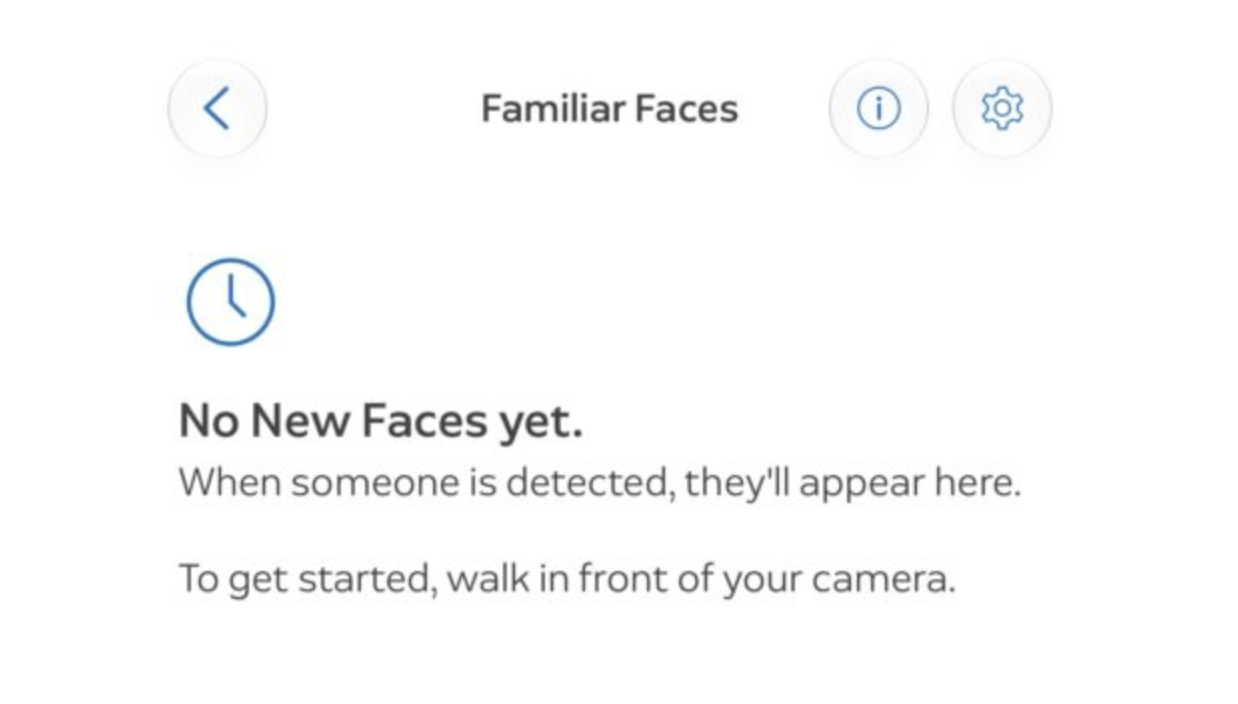
To give that person a name, open the Ring menu, select Pro Features, choose Manage People and open the relevant profile. Tap Name this person and enter the name you want displayed. You can also name someone directly from a recording in Event History or Timeline when Ring has detected their face.
The library supports up to 50 profiles, which should be plenty for family members, close friends, neighbours, babysitters, cleaners, dog walkers and other regular visitors. Unnamed profiles disappear automatically after 30 days without another recognition, helping prevent the library filling up with people who only passed the camera once.
It is worth checking the library occasionally, particularly during the first few weeks. Facial recognition isn’t perfect. If Ring creates multiple profiles for the same person, open one of them, choose Name this person and start entering the person’s existing name. Select the existing profile when it appears and confirm the merge.
If Ring has placed an incorrect image inside someone’s profile, you can fix that too. Open the profile, tap the pencil icon, select the incorrect images and choose This is not [Name]. You can then move the image into the correct profile, create another person or delete it.
One of Familiar Faces’ best tricks is actually telling Ring who you don’t want to hear about.
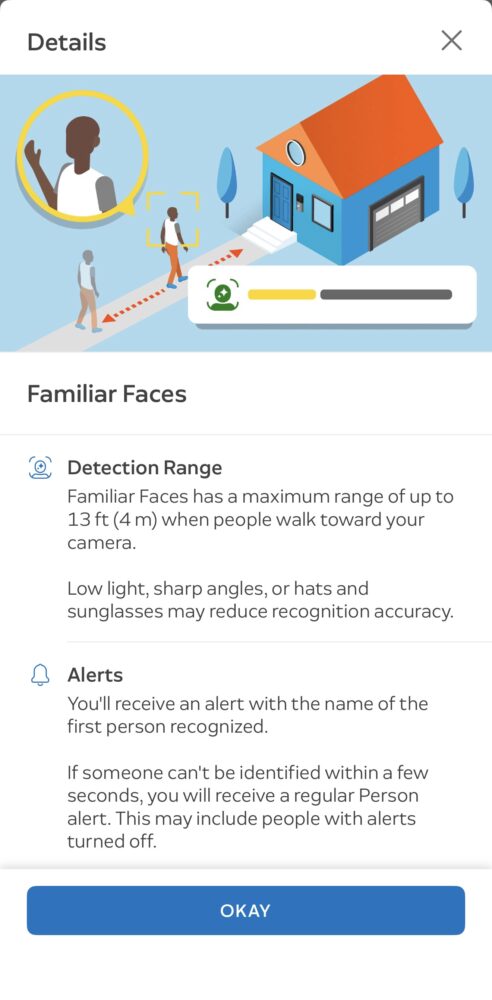
Open Pro Features, go into Manage People and use the alert toggle beside each saved person. Leave it enabled and Ring can send a notification containing that person’s name when they’re recognised. Switch it off and you won’t receive an alert for that person, although their recognised appearance will still show up with their name in Event History and Timeline.
That could be particularly handy for people living in busy households. You probably don’t need your phone buzzing every time your partner walks through the front door, but you might want an immediate notification when your child gets home from school or a regular visitor arrives.
There is one setting to check if Familiar Faces suddenly stops working. Enabling the feature automatically switches on the necessary Smart Alerts functionality. If you later disable Person Recording inside Smart Alerts, Familiar Faces won’t be able to identify people or send recognition notifications. Turning off Person Alerts is slightly different: recognised faces can still appear in recorded events, but your phone won’t receive the corresponding alerts.
Camera positioning also matters. Higher-resolution 2K and 4K cameras can generally recognise faces at around three to four metres under suitable conditions, while HD 1080p models have a shorter range of roughly two metres. Poor lighting, sunglasses, helmets, masks and people quickly crossing the camera’s field of view can all reduce recognition accuracy. Ring recommends positioning a doorbell around 1.2 metres above the ground for the best results.
Finally, spend a moment thinking about privacy before filling the library with everyone you know. Familiar Faces processes facial information, and Ring recommends informing people whose faces you save and checking any applicable consent requirements. The UAE launch information also specifically highlights consent and says the Ring app provides guidance when the feature is configured.
Only the Ring account owner can manage Familiar Faces, although Shared Users can see recognised names in alerts. Profiles and facial recognition information are encrypted and stored in the cloud rather than directly on the camera.
Once everything is configured, there isn’t much else you need to do. Familiar Faces should gradually turn the constant stream of generic Ring notifications into something considerably more useful: not just telling you that somebody is standing outside, but giving you a pretty good idea who just arrived.