
• Stories
    • Tech
    • Auto
    • Guides
    • Opinions
  • Reviews
    • READERS’ CHOICE
    • ALL REVIEWS
    • ━
    • SMARTPHONES
    • CARS
    • HEADPHONES
    • ACCESSORIES
    • LAPTOPS
    • TABLETS
    • WEARABLES
    • SPEAKERS
    • APPS
  • WATCHLIST
    • TV & MOVIES REVIEWS
    • SPOTLIGHT
  • GAMING
    • GAMING NEWS
    • GAMING REVIEWS
  • m
  • menu
  • SEARCH
  • STORIES
    • TECH
    • AUTOMOTIVE
    • GUIDES
    • OPINIONS
  • REVIEWS
    • READERS’ CHOICE
    • ALL REVIEWS
    • ━
    • SMARTPHONES
    • CARS
    • HEADPHONES
    • ACCESSORIES
    • LAPTOPS
    • TABLETS
    • WEARABLES
    • SPEAKERS
    • APPS
  • WATCHLIST
    • TV & MOVIES REVIEWS
    • SPOTLIGHT
  • GAMING
    • GAMING NEWS
    • GAMING REVIEWS
  • m
Follow US

Tired of Windows 11 start menu showing ads: here’s how to disable them

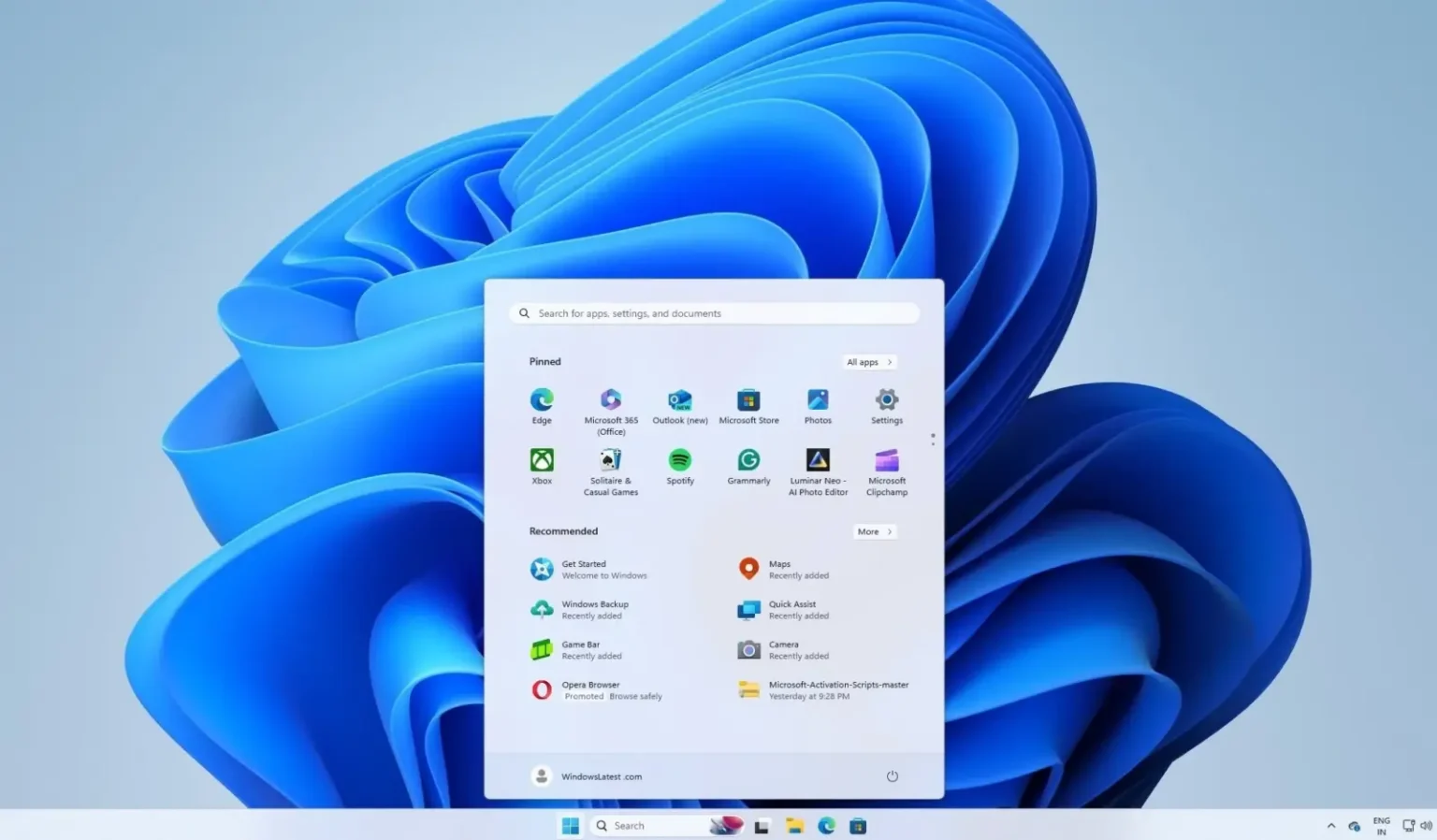
Windows 11 users are annoyed with the new ads appearing as "app recommendations" in the Start menu. These ads can be easily disabled in Settings by unchecking the option to show recommendations. This is just one of the many intrusive ads found throughout Windows 11, leading users to seek ways to "de-bloat" the operating system and remove unwanted features.
GEEK DESK
GEEK DESK
Jun 4

Windows 11 users are expressing frustration over the recent addition of ads to the Start menu. These ads, disguised as “app recommendations,” can clutter the menu and potentially lead to accidental purchases.

Thankfully, you can easily disable these intrusive ads by following a few simple steps:

  1. Open the Windows Settings App. You can do this by searching for it in the Start menu or by pressing the Windows key + i.
  2. Click on “Personalization” in the sidebar.
  3. Select “Start” on the Personalization screen.
  4. Uncheck the box that says “Show recommendations for tips, shortcuts, new apps, and more.”

By disabling this setting, you can prevent new ads from appearing in your Start menu.

Unfortunately, this isn’t the only change that has users feeling annoyed. Ads are becoming increasingly common throughout Windows 11. As a result, many users are choosing to “de-bloat” Windows 11 after installation to remove unwanted ads and features and restore elements of the familiar Windows 10 visual style.
What do you think?
Happy0
Sad0
Love0
Surprise0
Cry0
Angry0
Dead0
HyperX brings Cloud Alpha Air and Haste 3 Pro to gamescom
NVIDIA puts AI efficiency at the center of Vera Rubin
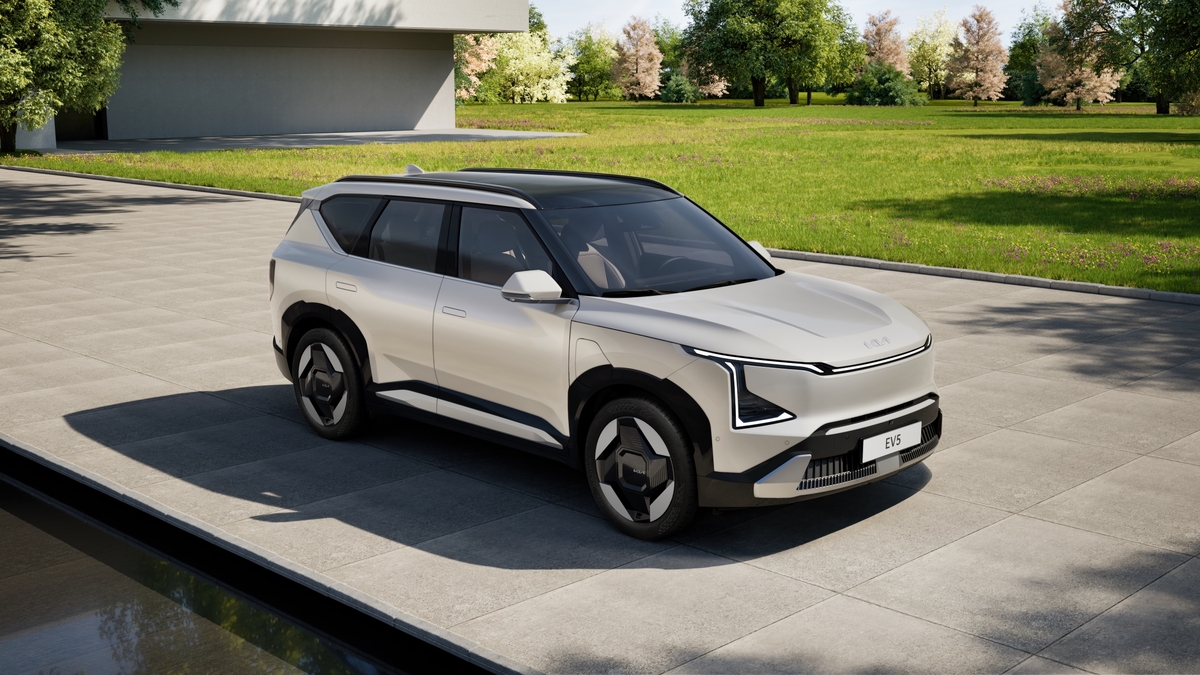
Kia EV5 wins German electric SUV comparison with convincing margin
Twitch launches collectible Pokémon Chat Badges with evolutions coming later
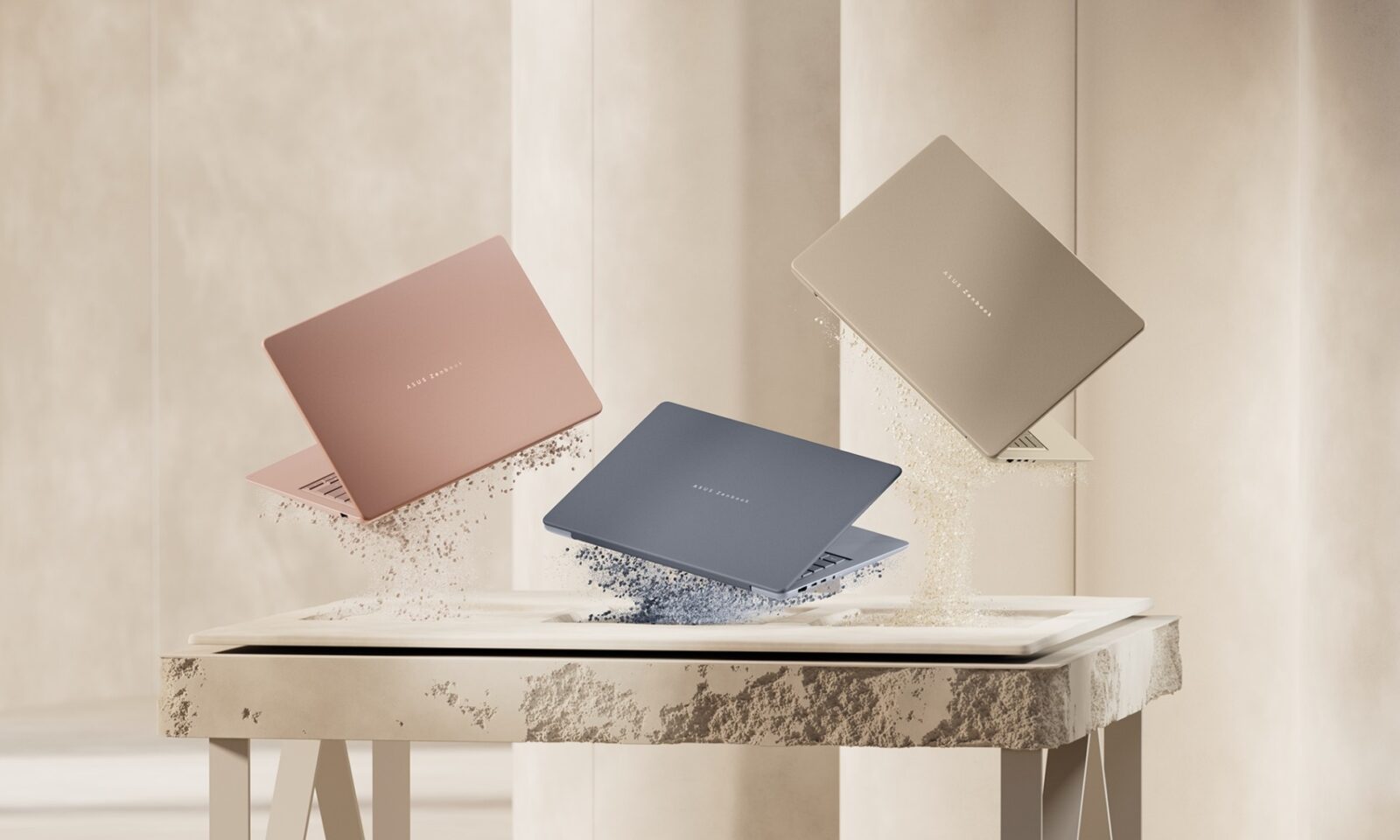
ASUS Zenbook 14 brings Snapdragon X Copilot+ computing to UAE
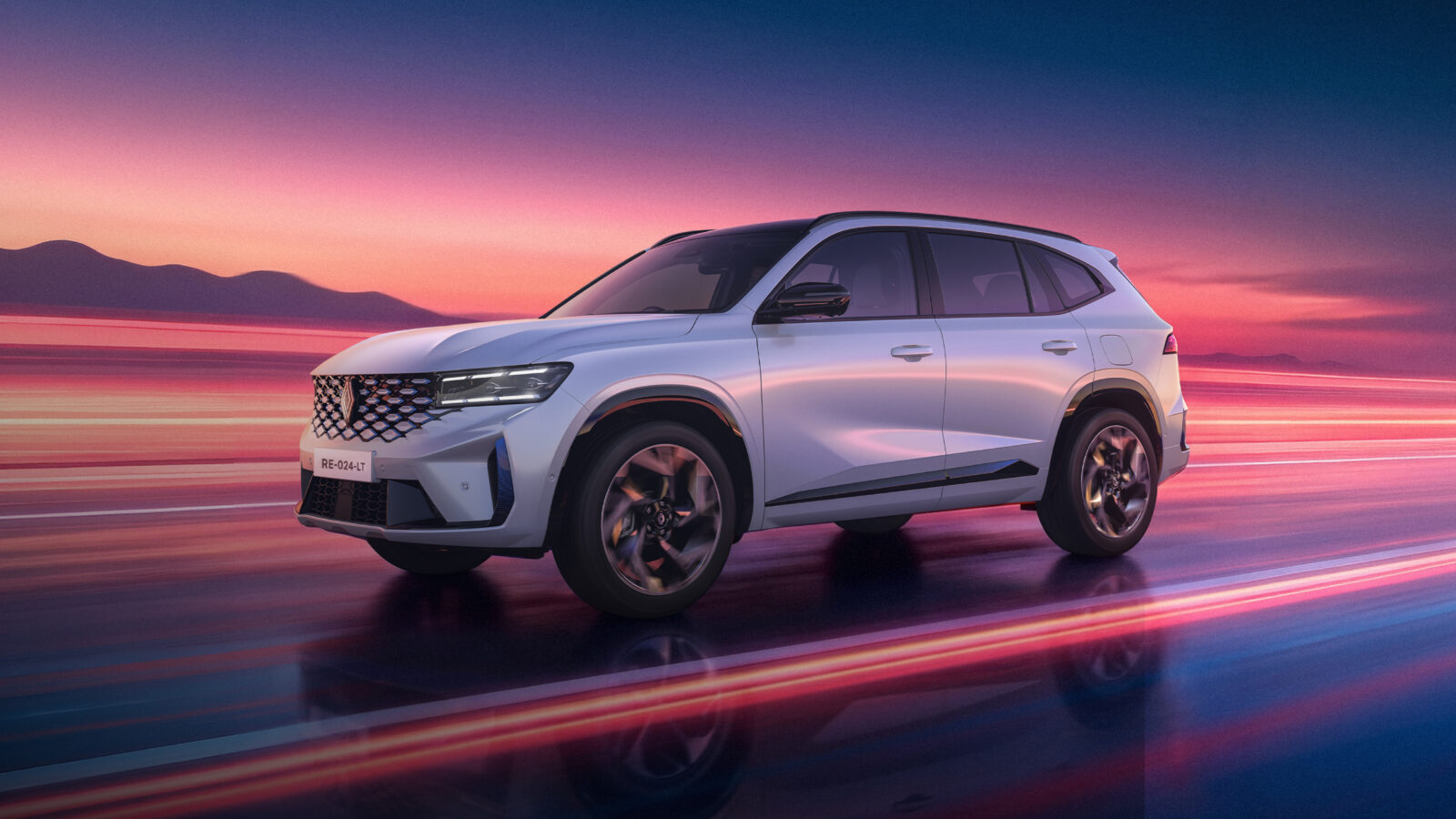
Renault Koleos highlights safety technology for busy UAE school runs
Follow US
Caffeine. Chaos. Content.
© Absolute Geeks Media FZE LLC 2014–2026.
Proudly made in Dubai, UAE ❤️
Contact · About · Editorial Policy · Privacy Policy
Welcome Back!

Sign in to your account

Username or Email Address
Password

Lost your password?