
Setting up and using Apple Pay is a breeze! It allows you to make contactless payments with your iPhone, Apple Watch, iPad, or Mac. Here’s how to get started:
Setting Up Apple Pay:
- Add your Cards:
- iPhone: Open the Wallet app and tap the “+” button. Choose “Debit or Credit Card” and either scan your card with the camera or enter the details manually. Follow the on-screen instructions to verify your card with your bank.
- Apple Watch: On your paired iPhone, open the Apple Watch app. Go to “My Watch” > “Wallet & Apple Pay” > “Add Card” and follow the same steps as on iPhone.
- iPad/Mac: Go to Settings > Wallet & Apple Pay. Tap “Add Card” and proceed as you would on iPhone.
- Customize Settings:
- Double-Click Button: On iPhone with Face ID, you can access your cards by double-clicking the side button. Go to Settings > Wallet & Apple Pay to activate this feature.
- Default Card: Choose your preferred card for payments in Settings > Wallet & Apple Pay.
- Allow Payments on Mac: This lets you confirm payments on your Mac using your iPhone. Enable it in Settings > Wallet & Apple Pay on your iPhone.
Using Apple Pay:
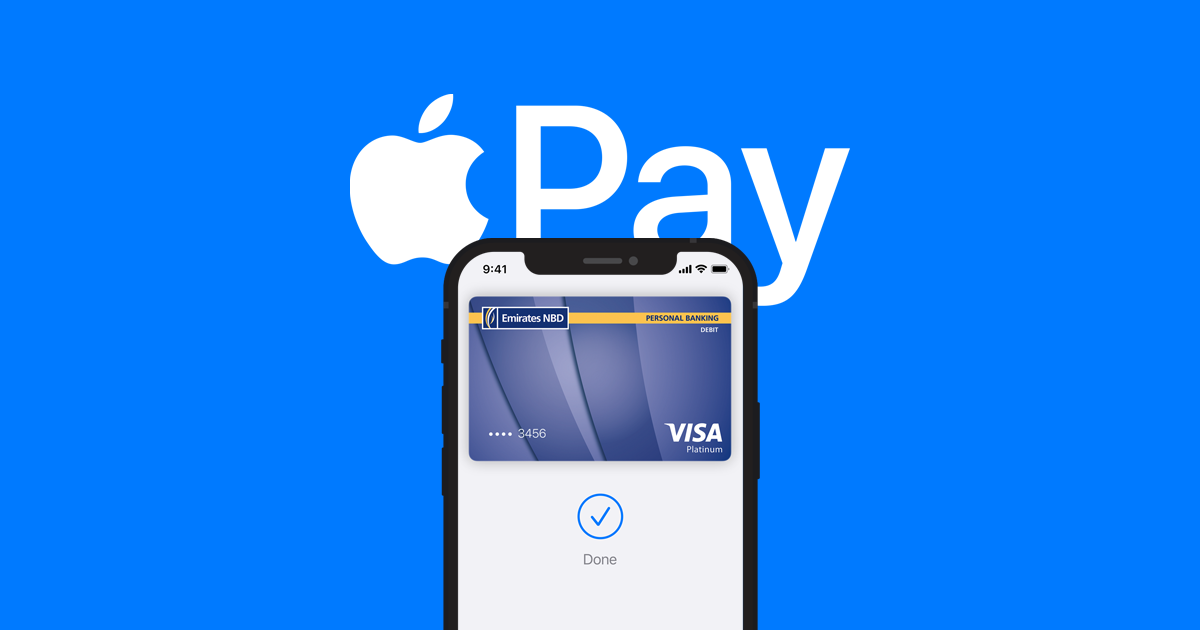
- In Stores: Look for the contactless symbol or the words “Apple Pay accepted” at checkout. Hold your iPhone or Apple Watch near the payment reader until you see a green checkmark on your device.
- Online and in Apps: Look for the Apple Pay logo at checkout. Choose your preferred card and then authenticate the payment using Face ID, Touch ID, or your passcode.
Additional Tips:
- You can add multiple cards to your Apple Pay wallet and easily switch between them.
- Apple Pay is secure and doesn’t store your full card number on your device.
- You can check your transaction history within the Wallet app on your iPhone or Apple Watch.