
iOS 16 is finally here and will be available to the public on September 12th. This year, Apple made a lot of changes to its iPhone OS, and here are the biggest changes and updates.
Lock Screen
At the heart of all the updates, iOS 16 delivers the biggest update to the Lock Screen, making it more personal, and helpful than ever.
Rich new photo features help you set your favorite images on the Lock Screen and stylize them in new ways. Choose from a new set of expressive type styles and colors to customize the look of the date and time, and add widgets to your Lock Screen to glance at data like the weather, upcoming calendar events, and more. Live Activities make it easier to stay on top of things happening in real time, like a sports game or food delivery, right from the Lock Screen.
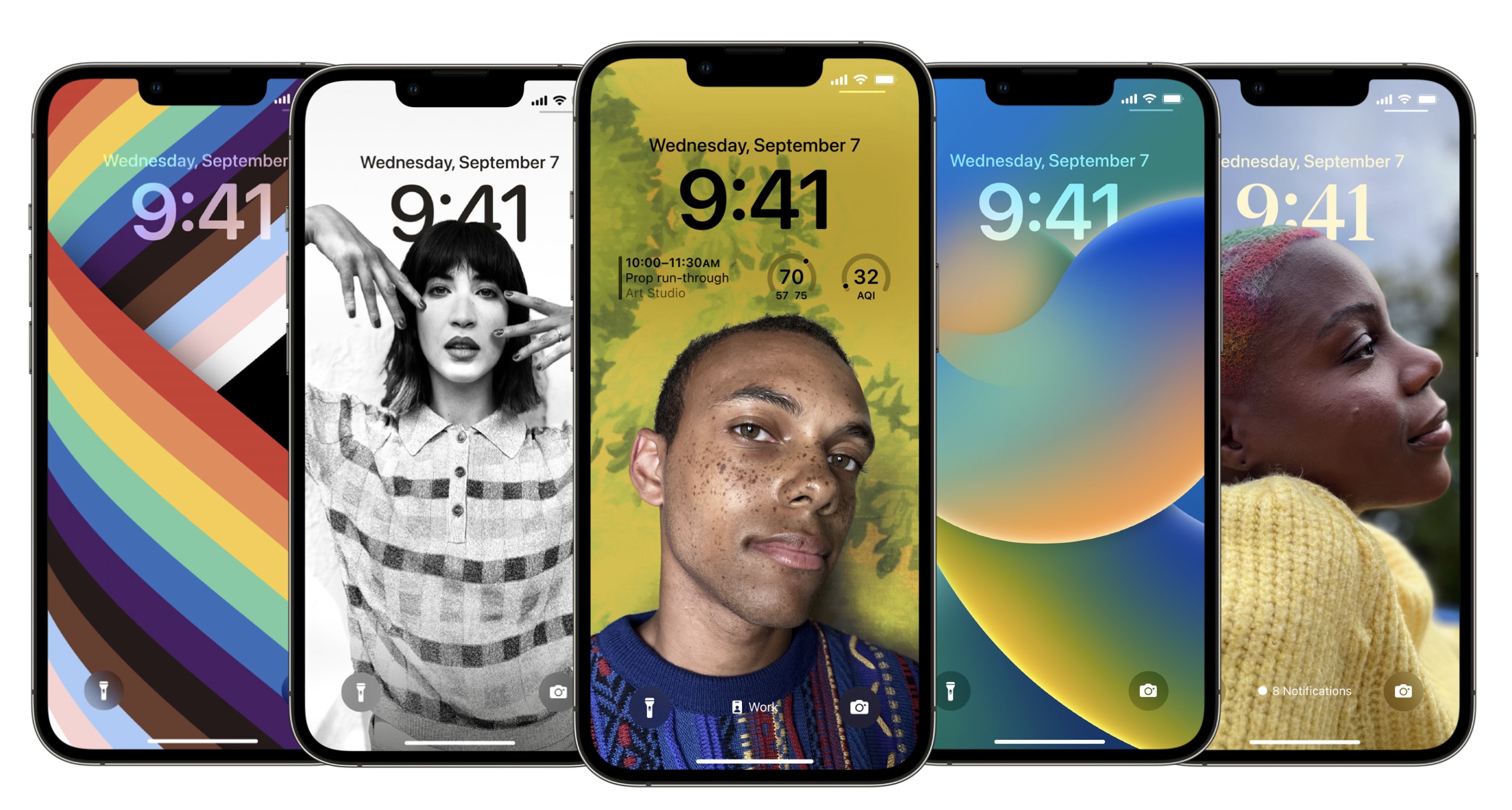
With Stylized time you can choose from six different font choices and colors to customize the look of the date and time. Widgets above the time, gives you a glance at information like the weather in this compact, in-line textual format above the time. Multilayered photo effect sets photos of people you care about in front of the time on the Lock Screen, creating a sense of depth, while Photo styles, apply styles to photos that automatically change the color filters, tinting, and type style to complement each other.
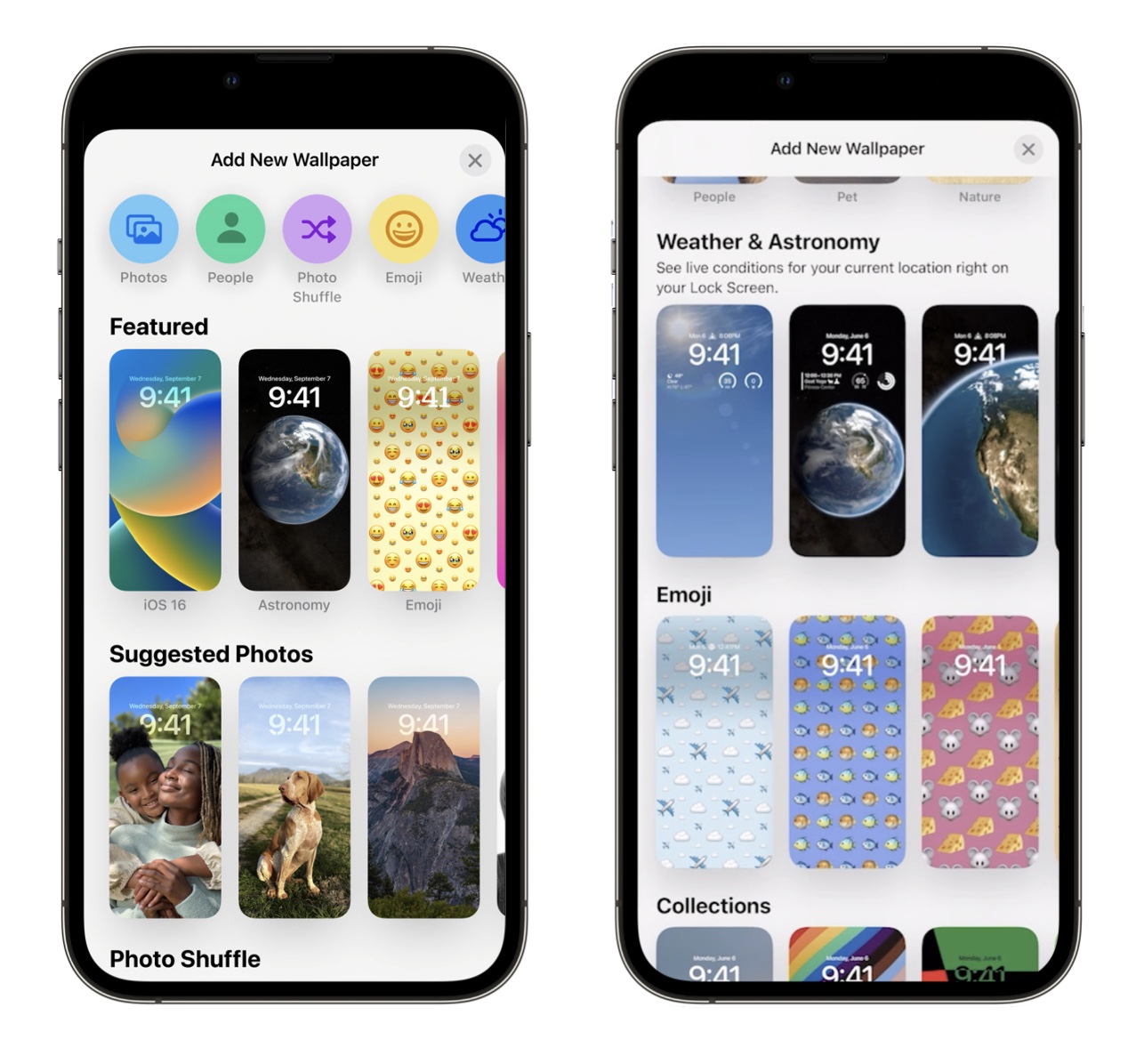
You can also choose from a wide selection of wallpapers, photos, ad emojis from new wallpaper gallery for the Lock Screen. Choices range from Featured wallpapers personalized for you, Suggested photos, Photo shuffle, Weather and Astronomy. Emoji and more.
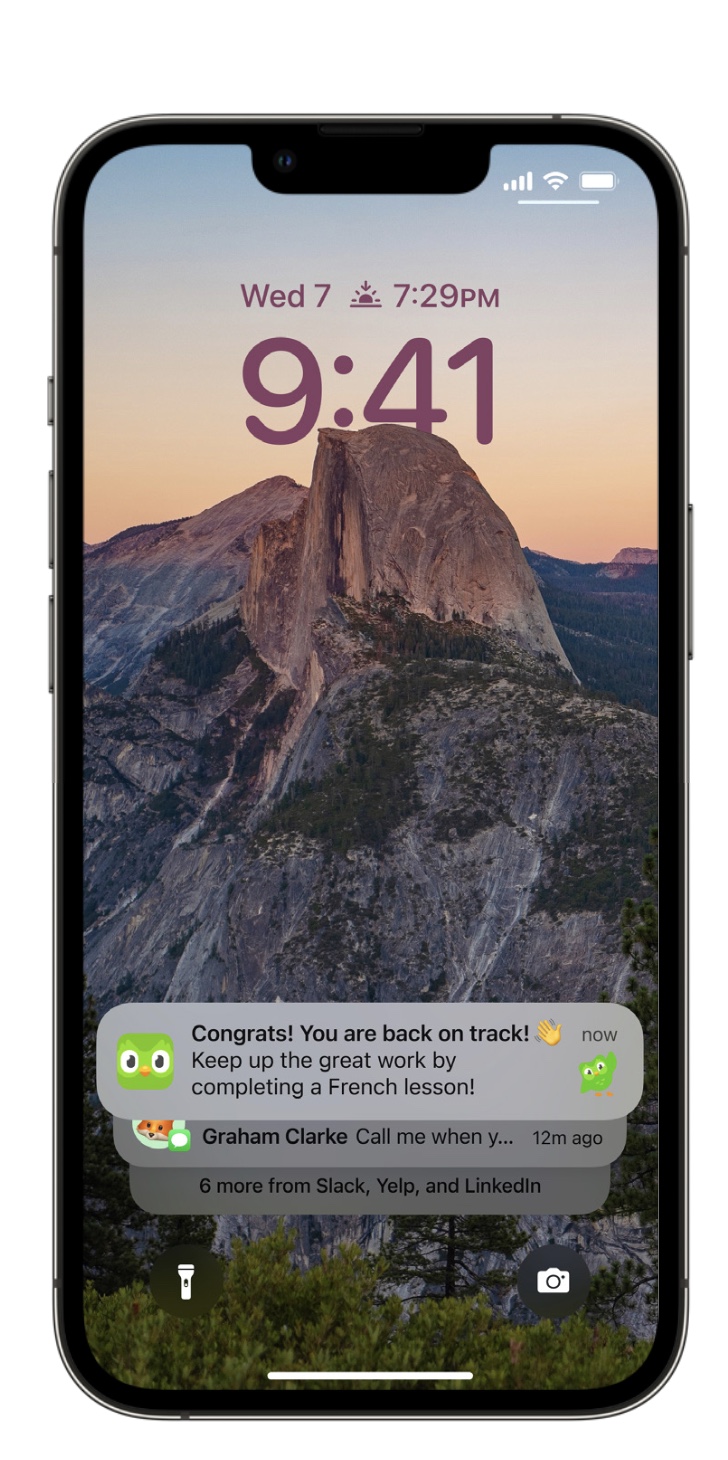
The lock screen also gets the Redesigned notifications with new options like Notification view, where you can choose to view notifications in an expanded list view, stacked view, or count view. Simply swipe to change the layout in context.
Notifications roll in from the bottom now, including your notification summary.
iCloud Shared Photo Library
iCloud Shared Photo Library gives families a new way to share photos seamlessly with a separate iCloud Photo library that up to six people can collaborate on and contribute to.
When you set up iCloud Shared Photo Library, you can choose to share everything already in your library, or you can customize what to include based on date and people in the photos. For example, you can choose to share everything after the date you met your partner. Or you can choose to include just the photos that include your partner and the kids. You can participate in one shared library and invite up to five other people. You can choose to share just the photos you want by manually moving photos and videos to the Shared Library, or move photos you contributed to the Shared Library back to your personal library.
Other features also include:
Sharing toggle in Camera: A switch in the Camera app lets you choose to send photos you take straight to the Shared Library—perfect when you’re on a family vacation and want all the photos you take to be shared right away.
Automatic proximity-based sharing: The setting lets you choose to automatically turn the Camera switch on when you are with other participants. So if you take photos on a family trip, you don’t have to remember to share them later—they can be added automatically.
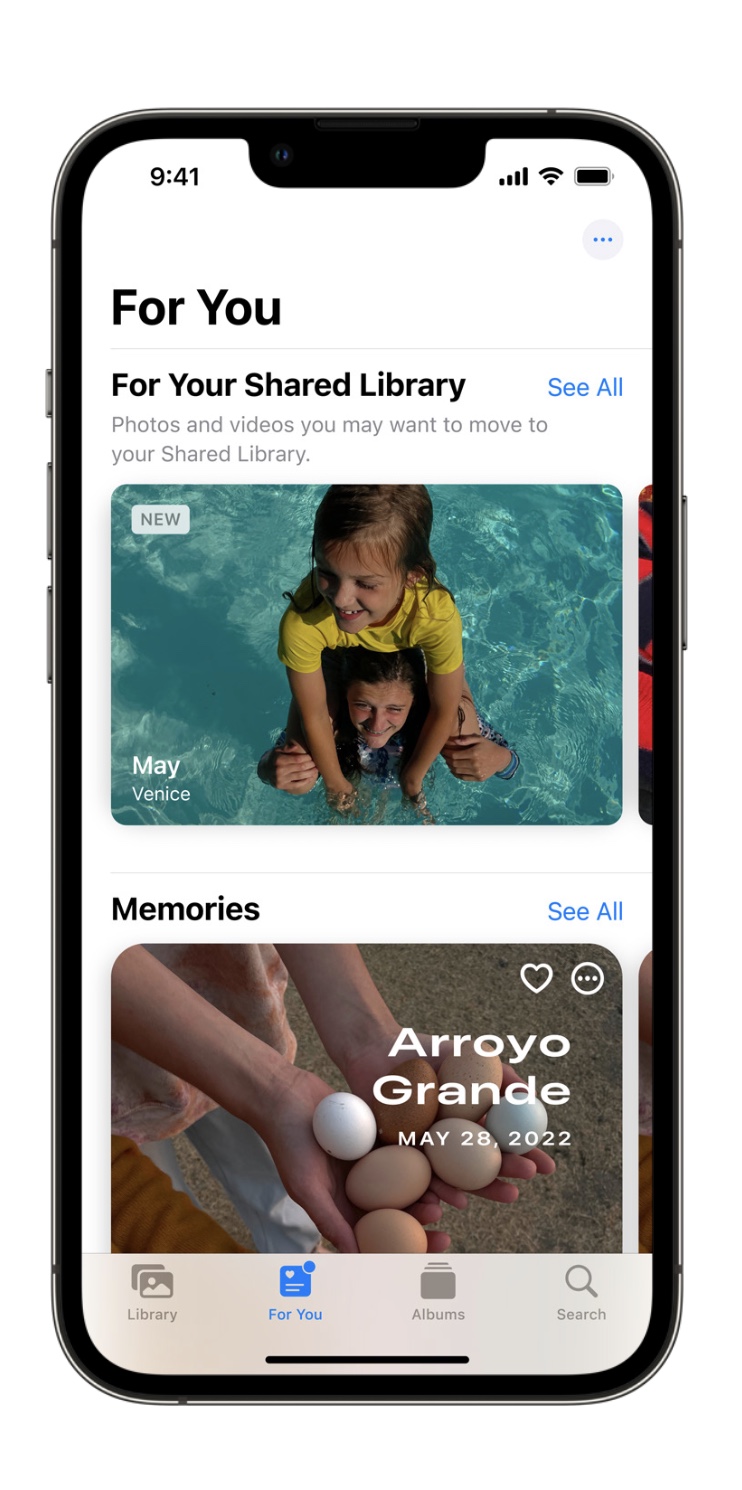
Smart suggestions in For You: To make it easy to complete your family’s memories, photo moments are suggested in the For You tab that include your family members and other people you choose. You can add a photo moment with just a tap, or review and add individual photos from the suggestion.
Messages
Messages brings all-new ways to share and connect with others with powerful collaboration tools and new ways to share the content.
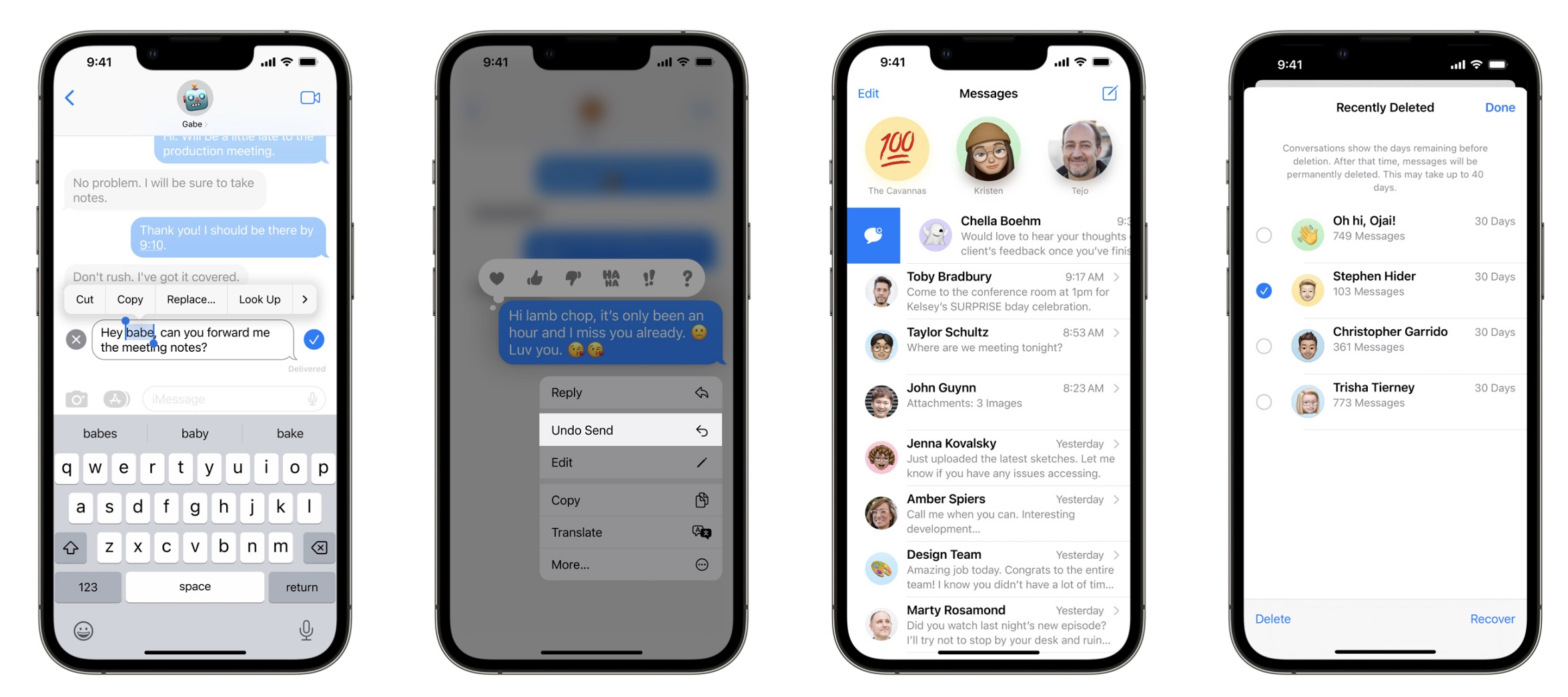
Edit a message: Edit any sent message up to 15 minutes after sending. Recipients will be able to see a record of edits.
Undo send: If you make a mistake or send something by accident, you can unsend any message up to 2 minutes after sending.
Mark as unread: Mark messages as unread when you don’t have time to respond and want to be sure to get back to the sender later.
Recover accidental deletes: Recover recently deleted Messages threads up to 30 days after deletion.
Collaboration in Messages: Start and manage collaborations in apps across the system using Messages, and view updates right in the thread where they were shared. You can now start a collaboration instantly with others by sharing a document, slide deck, or other file type in Messages, just like you share photos or links. Once a collaboration is started in Messages, everyone in the conversation automatically gets access to the shared file. When someone new is added to a Messages thread, you can easily add that new person to any existing collaborations, right from Messages. Updates will highlight when someone has made changes, left comments, or mentioned you in a collaboration.
Mail introduces an improved search experience that makes it easy to find what you need. New Inbox tools like Scheduled Send and Remind Me help you take control and efficiently manage your inbox while new compose features make it simple and easy to craft your message.
Search in Mail is getting an overhaul as well. Using new and improved techniques in relevancy rankings, Mail surfaces the most relevant email based on the content and your behavior, and with smart search suggestions, see a rich view of shared documents, links, and more the moment you click on the search bar. As soon as you start typing, you’ll instantly see results with each letter that you type. With Smart search corrections, 16 Intelligent search will use synonyms to your search terms when returning results. It also detects typos in your search terms and continues the search in your mail for the correct spelling.
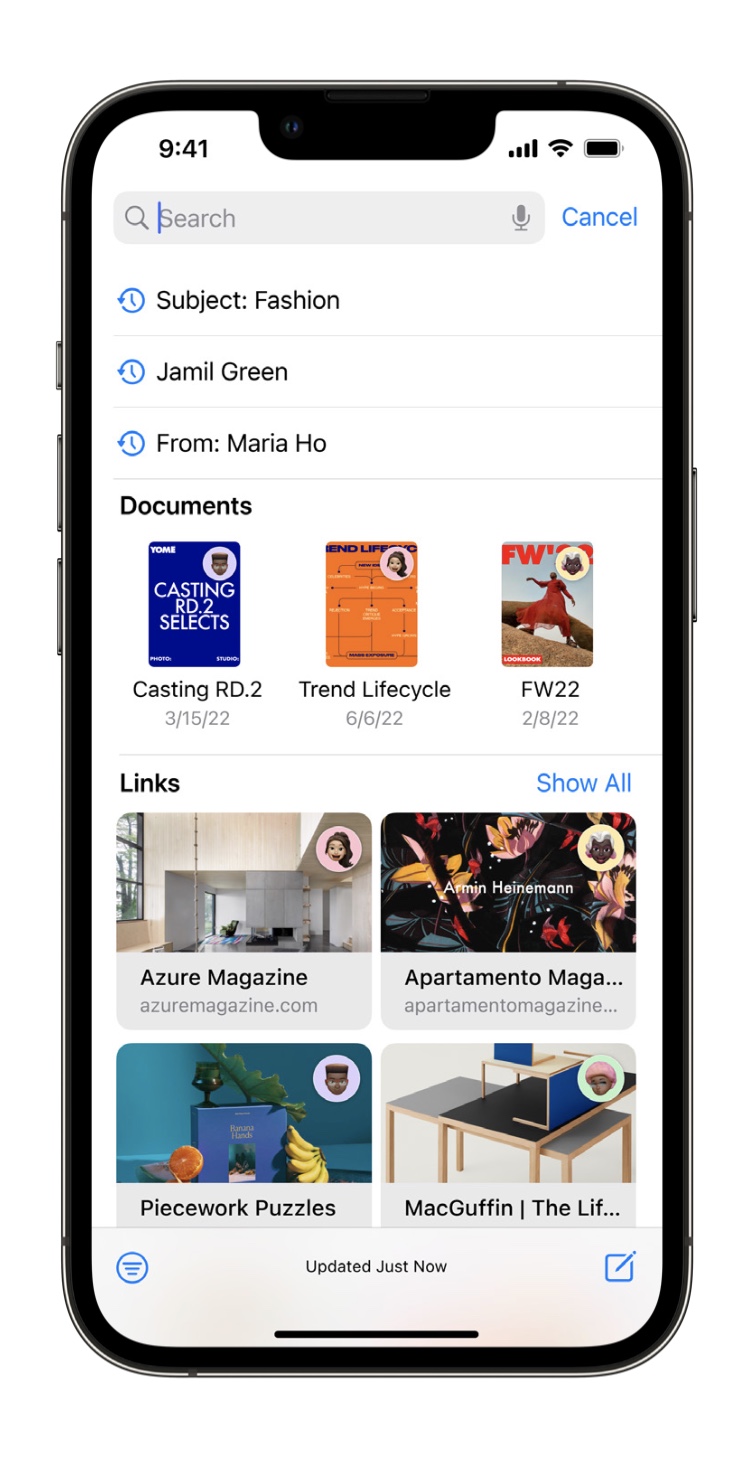
Other new features in Mail also include:
Scheduled send: You can now schedule email to be sent whenever you’d like.
Undo send: If you don’t catch a mistake before you hit send, you can easily pull back recently sent email messages within 10 seconds of sending them and before they ever reach the recipient’s inbox.
Remind Me: Swipe right on an email and set a reminder for any date and time. The email will reappear at the top of your inbox at that date and time so you’ll never forget that you opened it and need to come back to it.
Follow up: Mail detects sent email messages with key phrases like “Could you send…” and “I will do it by…” that have not received a response and surfaces them to the top of your inbox so you can quickly follow up.
Safari
Safari gets updates to help you collaborate and stay safe while browsing. Tab Groups are leveled up with new customization features and shared Tab Groups. Passkeys usher us into the passwordless future with an easier way to sign in that protects against phishing and website leaks.
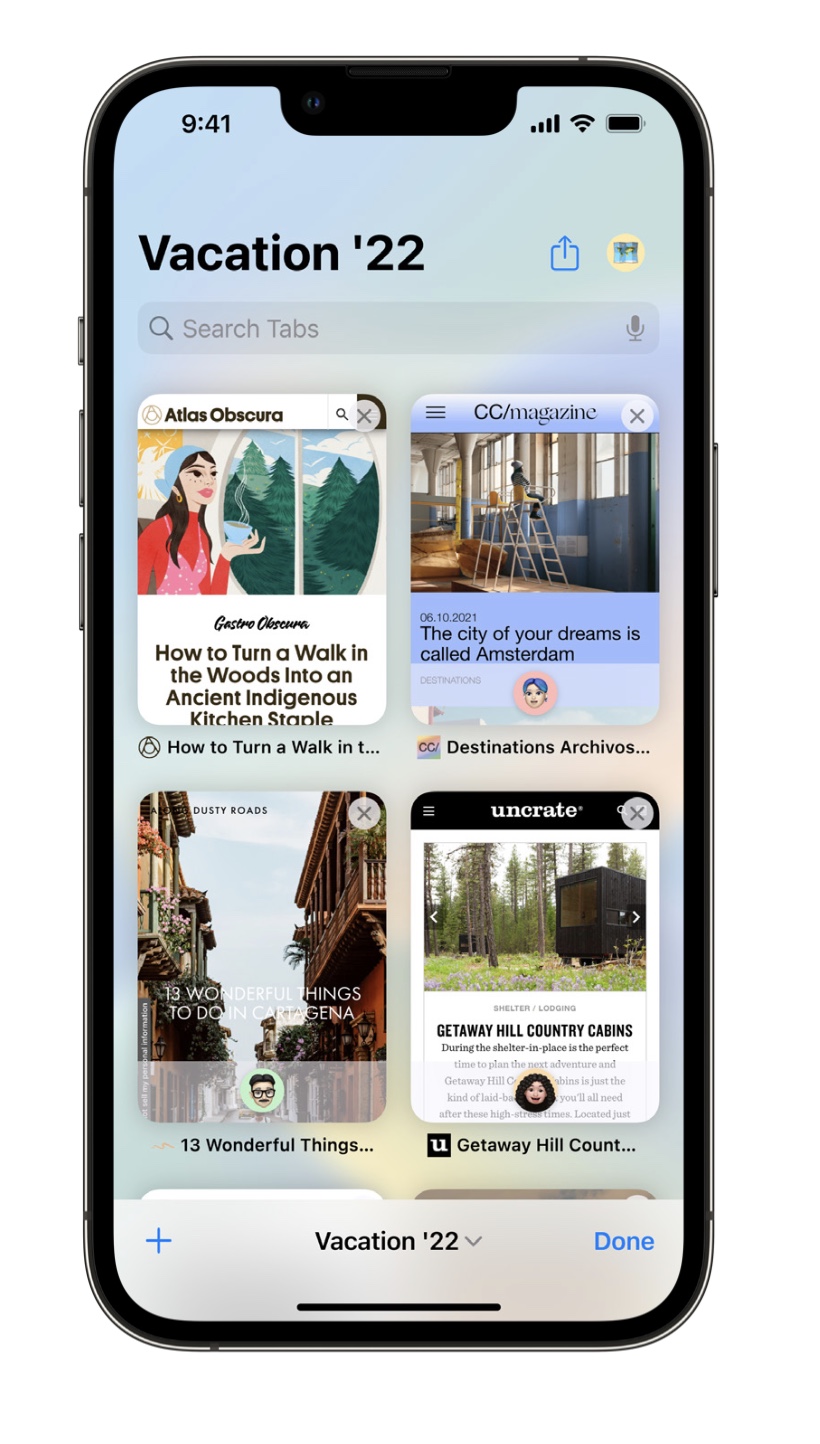
With Shared Tab Groups, you can collaborate on the web together with friends. Everyone in a shared Tab Group can make changes and add their own tabs. Shared Tab Groups are great for co-writing an article, planning an upcoming trip, or shopping for furniture with others. It’s so handy to share your favorite sites in one place. As you make changes to a shared Tab Group, everyone can see the updates instantly. You can also see which tab others are looking at in that exact moment, making it easy to discuss and connect in real time. Other enhancements include Tab Group start pages customization and Pinned tabs in Tab Groups.
Passkeys
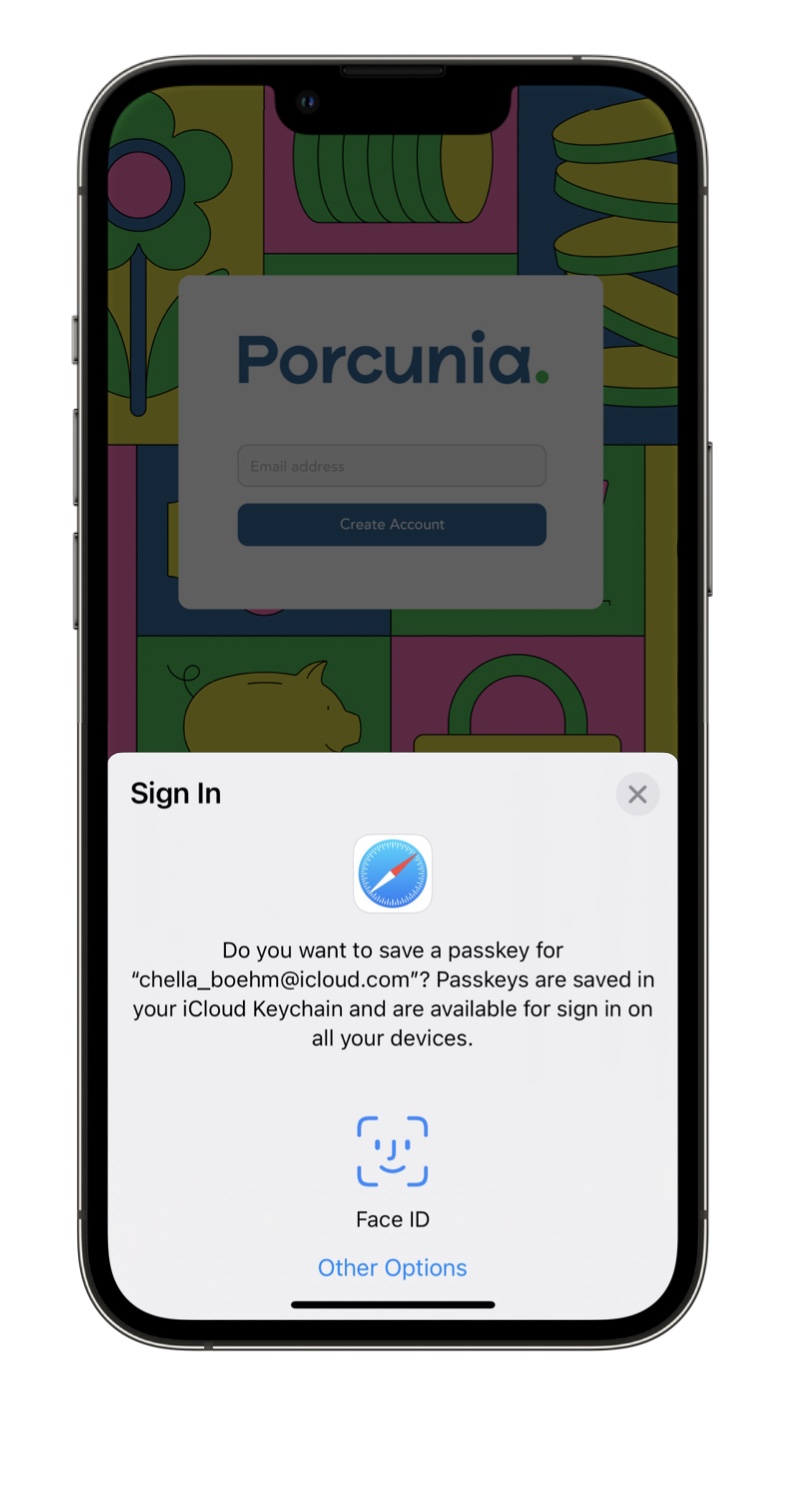
Passkeys replace passwords with a digital key that is unique to a user’s account, along with biometric authentication like Face ID or Touch ID, making passkeys stronger than all common two- factor authentication types. Passkeys are specific to the site you created them for and don’t leave your device during sign in, so hackers can’t steal them in a data breach or trick users into sharing them. Your secrets are never kept on a web server, so you don’t have to worry about website leaks compromising your accounts. Passkeys are end-to-end encrypted and synced across your Apple devices using iCloud Keychain. Passkeys can also be used cross-platform. You can sign in to websites on non-Apple devices using passkeys by scanning the QR code with your iPhone and using Face ID or Touch ID to authenticate.
Live Text & Visual Look Up
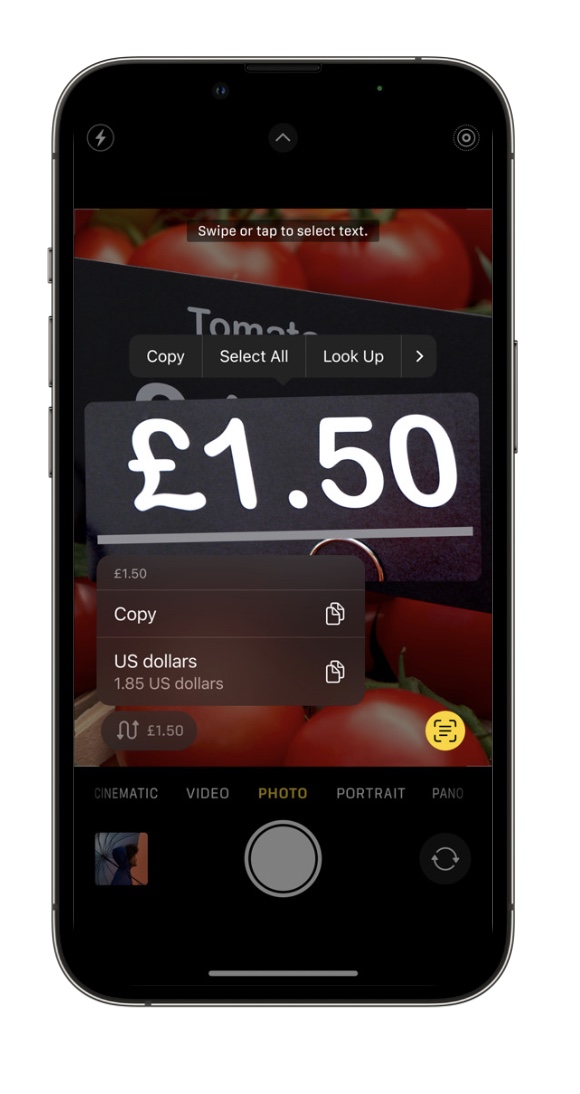
Live Text makes text and data that appear in photos, and now videos, interactive. Text is completely interactive in paused video frames, so you can copy/paste, Look Up, translate, share, and access quick actions. Live Text works with video in Photos, Quick Look, Safari, and more. Data detected in photos and videos is actionable with a single tap. Translate foreign languages, call phone numbers, launch websites, compose an email, search addresses, create calendar events, track flights and shipments, and convert units.
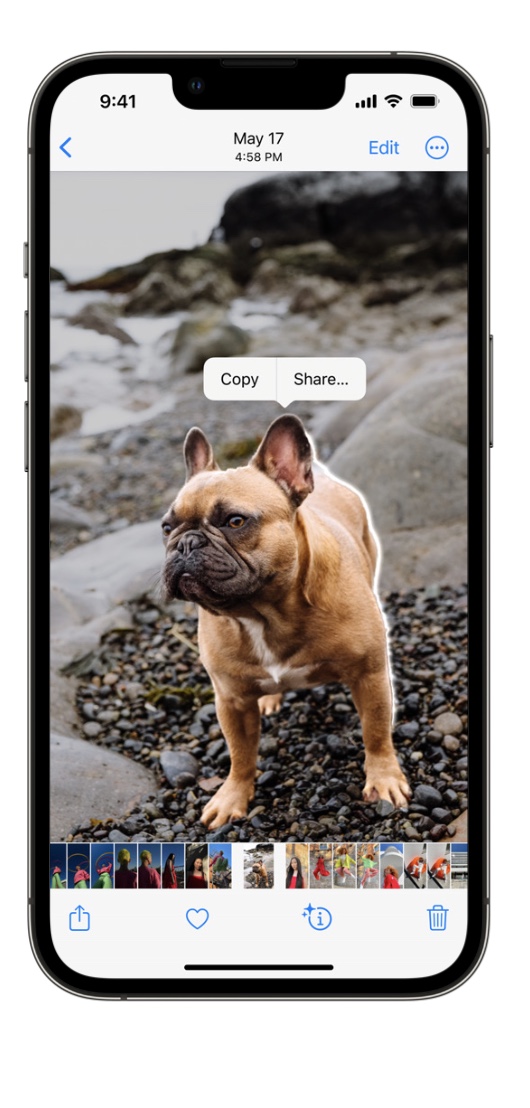
Visual Look Up allows you to quickly get information about objects and scenes that appear in images across the system. You can now lift the subject away from the background of an image and look up information on birds, insects, spiders, and statues. Touch and hold on the subject of an image to lift it away from the background. You can then copy the subject and place it in apps like Messages and Notes. You can also simply remove the background from the image. You will be able to access this capability systemwide including in Photos, Safari, Quick Look, and in screenshots.
Spotlight
Spotlight can be accessed directly from the bottom of the Home Screen, enabling easier access to launch apps, find contacts, or get information from the web. You can now use Spotlight to quickly take action. For example, you can create a timer or alarm from Spotlight after searching “clock.” You can also turn on a Focus, use Shazam to identify a song, and run any shortcut. You can even search for an app’s name to see shortcuts available for that app, or create your own from the Shortcuts app.
Live Activities make it easier to stay on top of things that are happening in real time. Similar to quick actions, you can start Live Activities, like tracking a sports game, directly from a Spotlight result. In addition to Photos, Spotlight image search now queries Messages, Notes, and Files too. You can search by locations, people, scenes, or even things in the images, like a dog or a car. Spotlight also shows you more information at a glance with new rich search results for businesses and sports leagues and teams.
Family Sharing
Now when you create an account for a child, you can set up their parental controls right from the start. This includes easy configuration of age-appropriate media restrictions, Screen Time, Ask to Buy, and location sharing.Once your child has their own account, setting up an iPad or iPhone for them is also now easier than ever. Just turn on the device they will be using, bring your iPhone nearby, and choose to set up with Quick Start. A screen will appear allowing you to select your child as the person who will be using it.
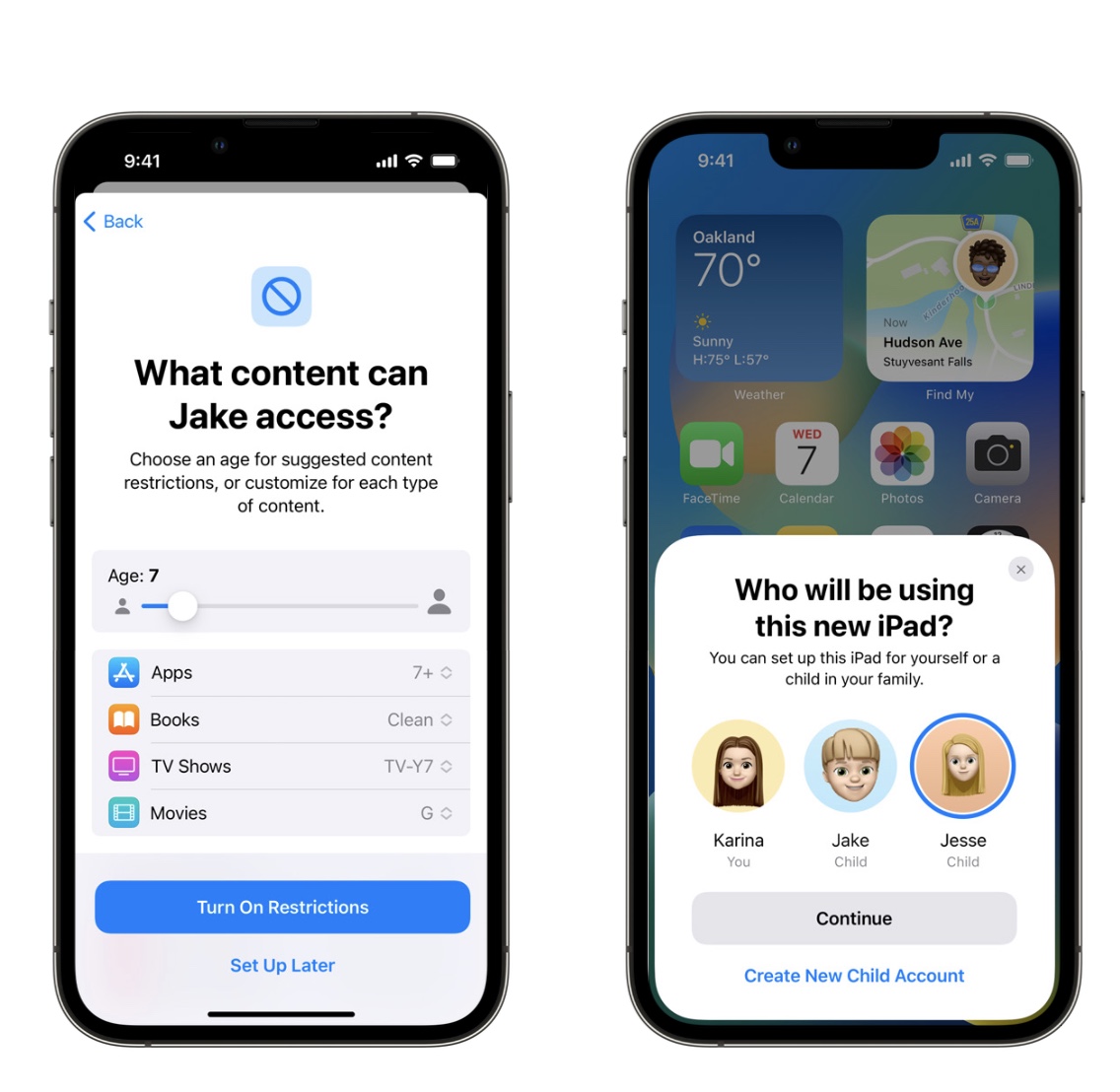
With just a few taps, the new device will be set up for them with all the parental controls you’ve selected already configured. Screen Time is a great way to set appropriate limits for kids, whether it’s time spent with certain apps or the entire device. Now, when a child reaches their limit and asks for more time, you can receive their request and approve or decline right in Messages, in addition to Settings.
Safety Check
Emergency reset: Designed for urgent situations, emergency reset lets you quickly take action to reset access across all people and apps. This includes disabling access to FaceTime and iMessage on your other devices. It also walks you through securing your iCloud account to only the device in your hand, and reviewing your emergency contacts and trusted devices.
Manage sharing and access: Manage sharing and access helps you review person by person and app by app to see who you’re sharing with. You can sort by name or by the type of information you’re sharing. This is a useful tool to understand and control what you are sharing with a particular person. It also can help you find an app with sensitive permissions installed by someone with access to your device.
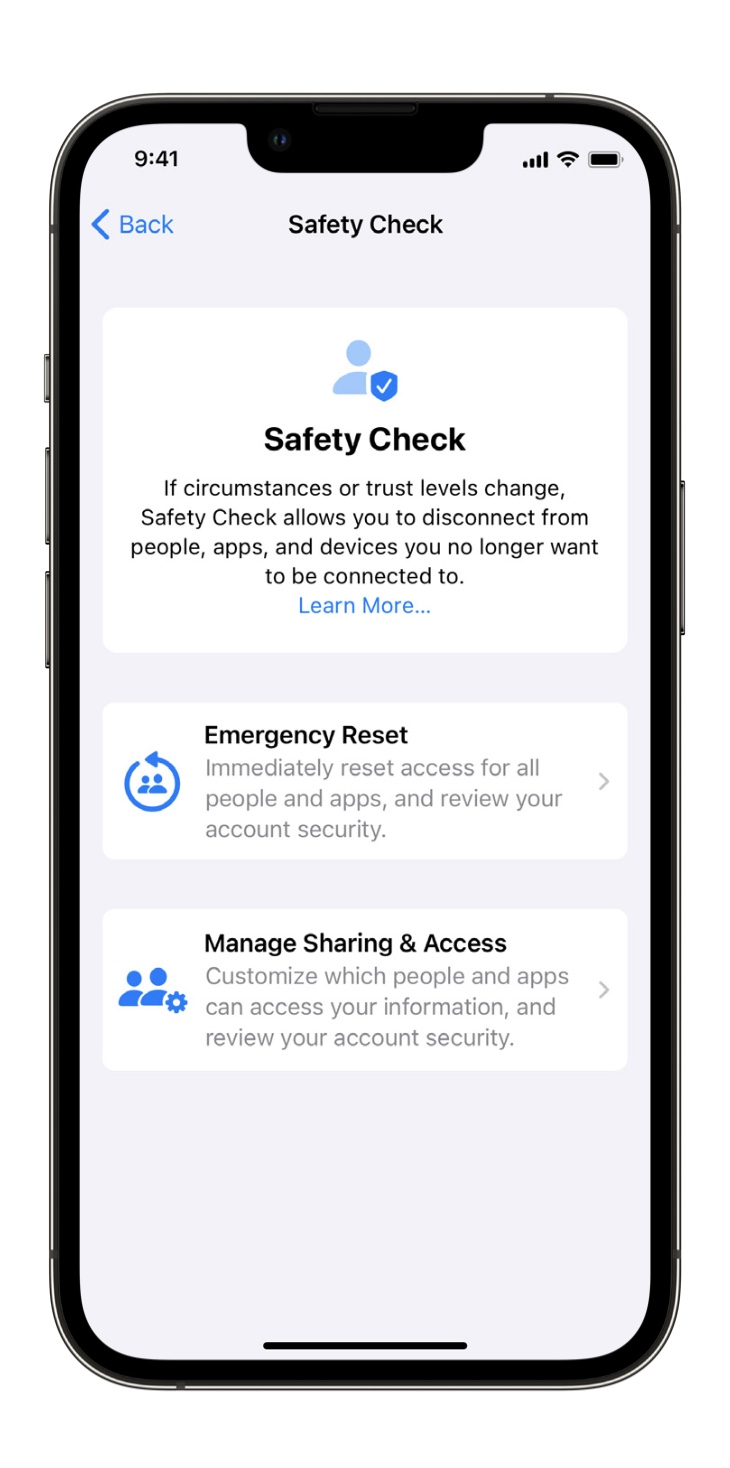
Quick exit: If you’re concerned that someone might see what you’re doing in Safety Check, you can quickly escape from any page by tapping quick exit. This returns you to the home screen, and the next time you enter the Settings app you’ll be taken to the main page, not Safety Check.
Many more…
Of course, iOS16 has many many more features and updates that we did not cover in this article, some which are currently operational outside our region. You can read about all the new features of iOS16 here.
iOS16 will be available as an update on the following devices:
iPhone 14, iPhone 14 Plus, iPhone 14 Pro, iPhone 14 Pro Max, iPhone 13, iPhone 13 mini, iPhone 13 Pro, iPhone 13 Pro Max, iPhone 12, iPhone 12 mini, iPhone 12 Pro, iPhone 12 Pro Max, iPhone 11, iPhone 11 Pro, iPhone 11 Pro Max, iPhone XS, iPhone XS Max, iPhone XR, iPhone X, iPhone 8, iPhone 8 Plus, iPhone SE (2nd generation or later).