

TL;DR: Rock-solid security and unmatched sharing tools make Keeper a serious contender—but you’ll pay for every bit of it. Great for control freaks, professionals, and power users who live beyond Apple’s walls.
Keeper Password
If you’ve ever had that sinking feeling of trying to remember which variation of your cat’s name you used for your Netflix login, congratulations—you’ve reached the part of adulthood where password managers become your new religion. And in that temple of encrypted salvation, Keeper Password Manager struts in like the CEO of Security. Polished, professional, zero-knowledge, and priced like a consultant.
Keeper has a reputation that sounds like it came straight out of a cyberpunk novel: certified for use by enterprises, government agencies, and medical institutions. Basically, it’s the password manager you’d expect Batman’s IT department to use. But while that enterprise pedigree looks great on a résumé, the question for regular humans like you and me is simpler: does Keeper work well enough to justify its premium price?
After months of testing, importing hundreds of logins, syncing across devices, and muttering at autofill pop-ups, my answer is a careful, slightly exasperated “yes, but…”

When Free Isn’t Free (and Barely Useful)
Let’s start with the so-called Free Plan. Calling Keeper’s free tier “limited” is like calling the Titanic “slightly damp.” It’s only available on one mobile device, doesn’t sync, doesn’t include browser extensions, and limits you to 10 passwords. Ten. In an age where even my refrigerator has a login.
Sure, I get it—security infrastructure costs money. But when Proton Pass offers syncing and NordPass lets you actually, you know, use it across devices, Keeper’s free plan feels like a glorified trial. It’s less “entry-level offering” and more “look but don’t touch.”
That said, the Unlimited plan is where things actually get good. For $40 a year, you unlock multi-device sync, unlimited password storage, and customer support. It’s not the cheapest in town—1Password and Proton Pass sit around $36—but it’s also not outrageously high, especially considering Dashlane charges $60.

Then there’s the Family plan, which runs $85 a year for five vaults and 10GB of encrypted storage. That’s pricier than most, and honestly, unless your household is a small cybersecurity firm, that cost feels hard to justify.
What really grinds my gears are Keeper’s add-ons—extra fees for features that every other password manager includes for free. Dark web monitoring (called BreachWatch) is $25 a year. Extra file storage? $13 for 10GB, scaling up to $100 if you want serious space. It’s nickel-and-diming in a market where the competition bundles those features by default.
Keeper does offer multiyear discounts—20% off for two years, 30% for three—but that’s like a store offering 10% off a $1,000 watch. The deal’s fine; the problem is the starting price.
Getting Started: Import Nightmares and CSV Chaos
Setting up Keeper feels familiar at first. Export your old passwords, import the CSV file, and bask in the relief of not typing “forgot password” for the fiftieth time. Except… Keeper’s import tool apparently took a half-day training on how to read CSVs and then gave up.
I imported over 600 records from Proton Pass, and while Keeper correctly recognized the basics—username, password, site name—it absolutely faceplanted on anything beyond that. My one-time passwords? Lost in translation. Credit cards and secure notes? Jumbled together like an overstuffed suitcase.
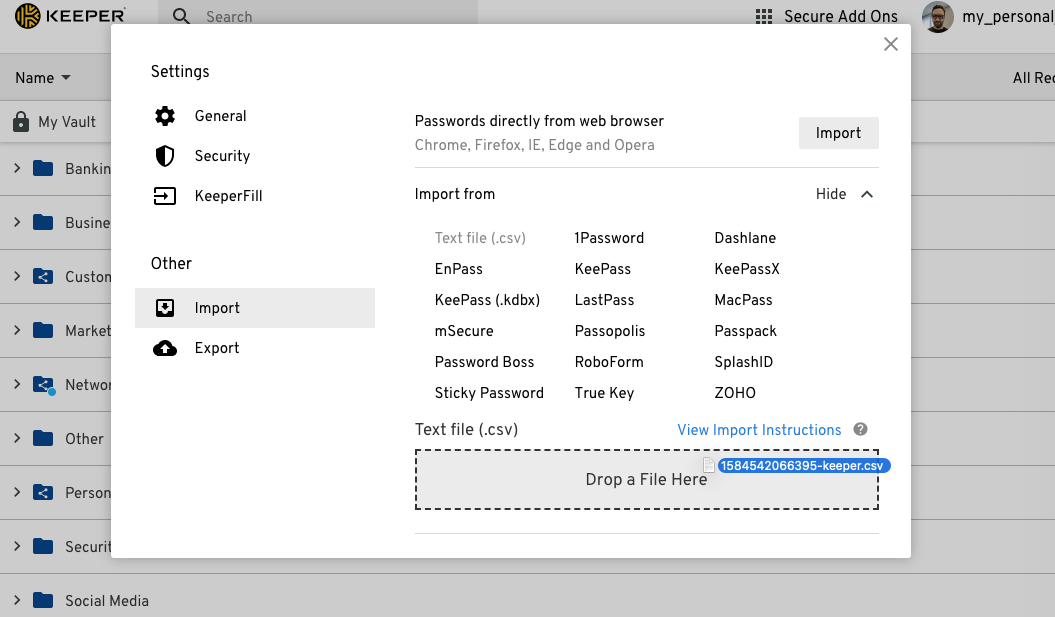
Keeper does allow manual cleanup before import, which helps, but the process feels tedious compared to the smooth onboarding I’ve had with 1Password. You shouldn’t need to babysit your CSV file like it’s a fragile museum artifact.
Once it’s set up, though, things stabilize. Keeper organizes data into records (their word for “items”)—logins, identities, payment cards, and secure notes—and you can customize up to 26 fields per record. I respect the flexibility, but I wish that polish extended to import automation. For a tool that screams “enterprise-grade,” the setup shouldn’t feel like a part-time job.
Daily Use: The Browser Is Where Keeper Shines
Let’s be real: most of us don’t live inside our password managers. We live in our browsers. And Keeper’s browser extension, KeeperFill, is where the service truly shines.
Available on Chrome, Firefox, Safari, Opera, and Brave, it’s sleek, responsive, and absurdly configurable. Autofill is near flawless when it comes to login forms. Keeper never confused fields, never sprayed random data across text boxes, and always caught new logins without issue.

Credit cards and addresses, however, were another story. Sometimes KeeperFill just… didn’t show up. When it did, it worked perfectly—but it was inconsistent. 1Password handles this better, offering a manual “fill anyway” option, which Keeper sorely lacks.
Still, the extension gives you more control than most. You can adjust clipboard expiration times (to auto-wipe copied passwords), enable biometric authentication, and even change how the extension looks—portrait or landscape mode. These small details add up to a feeling of power-user control, like tuning a well-built mechanical keyboard.
Offline Mode, Manual Sync, and Other Nerdy Joys
On desktop, Keeper mirrors the web version almost exactly, which might sound boring but is actually a blessing. The interface is clean, responsive, and packed with thoughtful extras.
The standout feature here is Offline Mode. Most password managers hide this in obscure menus, but Keeper puts it front and center. If you’re traveling, working in a security-locked environment, or just want to feel like a spy, offline mode lets you access your vault without any cloud connection. You also get a manual sync button, which shouldn’t be exciting—but it is. When you’re juggling multiple devices, having that little button to force a sync feels like a magic reset switch.
These touches make Keeper feel designed by people who actually use their own software.

Sharing That Actually Makes Sense
Where Keeper really earns its stripes is in sharing. Most password managers treat sharing like an afterthought. Keeper treats it like an art form.
Everything you store—passwords, notes, payment cards—is a record, and each can be shared individually or in groups through folders. But instead of forcing you to share your whole vault (looking at you, Proton Pass), Keeper lets you fine-tune permissions: view-only, edit, manage users, even granular record-level controls.
It’s like having Google Drive’s permission system for your passwords. You can even create one-time share links for non-Keeper users, or set self-destruct records that vanish after being opened—perfect for sharing something sensitive like a one-time access code or, I don’t know, your Netflix password with your ex who still has your login.
In short: Keeper’s sharing is the best I’ve seen. Period.

Security: Overkill in the Best Way
Keeper’s biggest brag is its zero-knowledge, zero-trust architecture, and it’s not exaggerating. Every record is encrypted with its own AES-256 key, and even Keeper itself doesn’t have the means to decrypt your vault. Everything happens locally, with transmission keys protecting against man-in-the-middle attacks.
It’s the gold standard for password managers, and Keeper’s transparency about its system earns major respect. Its documentation reads less like marketing fluff and more like a whitepaper written by people who eat encryption for breakfast.

There are smaller but equally smart security touches, too. Clipboard contents clear automatically after 30 seconds. Keeper warns you if you try to autofill on an insecure (HTTP) site. It’s these micro-level safety nets that make you feel like the app has your back, even when you’re being lazy.
If you’re the type to dig through NIST guidelines for fun (I see you, security nerds), Keeper will scratch that itch.
Keeper vs Apple Passwords: Enterprise Muscle Meets Ecosystem Ease
Now let’s talk about the elephant in the iCloud: Keeper vs Apple’s built-in Passwords.
If you live entirely inside Apple’s ecosystem—Mac, iPhone, iPad, Safari—then Apple Passwords is a hard act to beat. It’s free, syncs seamlessly via iCloud Keychain, and integrates with Face ID or Touch ID like magic. You can autofill across apps and websites without ever thinking about it.
For everyday users, that’s all you really need. Apple’s password manager has evolved far beyond its humble beginnings; it now supports passkeys, verification codes, password sharing with family members, and even detects reused or weak passwords.

But—and it’s a big “but”—Apple Passwords still lives in a gilded cage. If you ever step outside the Apple Garden (say, to a Windows PC or Android phone), things fall apart fast. Yes, there’s a Chrome extension for Windows now, but it’s clunky compared to native apps like Keeper.
Keeper, by contrast, is cross-platform royalty. It works everywhere—Windows, macOS, Linux, Android, iOS, and nearly every browser under the sun. It’s built for people who bounce between ecosystems, who use Chrome on their work laptop and Safari on their phone. It’s the Switzerland of password managers—neutral, independent, and very, very secure.
Apple Passwords
Keeper also crushes Apple Passwords when it comes to sharing and customization. Apple lets you share passwords with your iCloud Family, but that’s about it. Keeper’s advanced permission system makes it ideal for small teams, roommates, or anyone managing shared credentials without exposing their entire vault.
The tradeoff? Apple’s Passwords app is effortless and free; Keeper is powerful but pricey. Think of it like comparing an automatic car to a stick shift sports coupe. Apple’s system gets you where you need to go without fuss; Keeper gives you total control—at the cost of more maintenance and, well, $40 a year.
So if you’re all-in on Apple, stick with their built-in solution—it’s surprisingly capable now. But if your digital life spans multiple ecosystems or you crave enterprise-grade control, Keeper remains the smarter (and safer) bet.
Verdict
Keeper Password Manager delivers everything you’d expect from an enterprise-grade vault—flawless security, brilliant sharing, and powerful customization—but stumbles with an anemic free plan and nickel-and-dime pricing. It’s the definition of premium: polished, reliable, and slightly overpriced, but you can’t deny the craftsmanship.