
• STORIES
    • TECH
    • AUTOMOTIVE
    • GUIDES
    • OPINIONS
  • REVIEWS
    • READERS’ CHOICE
    • ALL REVIEWS
    • ━
    • SMARTPHONES
    • CARS
    • HEADPHONES
    • ACCESSORIES
    • LAPTOPS
    • TABLETS
    • WEARABLES
    • SPEAKERS
    • APPS
  • WATCHLIST
    • TV & MOVIES REVIEWS
    • SPOTLIGHT
  • GAMING
    • GAMING NEWS
    • GAME REVIEWS
  • +
    • OUR STORY
    • GET IN TOUCH
Reading: How to set up and use Apple Pay
Share
Notification Show More
  • STORIES
    • TECH
    • AUTOMOTIVE
    • GUIDES
    • OPINIONS
  • REVIEWS
    • READERS’ CHOICE
    • ALL REVIEWS
    • ━
    • SMARTPHONES
    • CARS
    • HEADPHONES
    • ACCESSORIES
    • LAPTOPS
    • TABLETS
    • WEARABLES
    • SPEAKERS
    • APPS
  • WATCHLIST
    • TV & MOVIES REVIEWS
    • SPOTLIGHT
  • GAMING
    • GAMING NEWS
    • GAME REVIEWS
  • +
    • OUR STORY
    • GET IN TOUCH
Follow US

How to set up and use Apple Pay

GEEK DESK
GEEK DESK
Dec 21

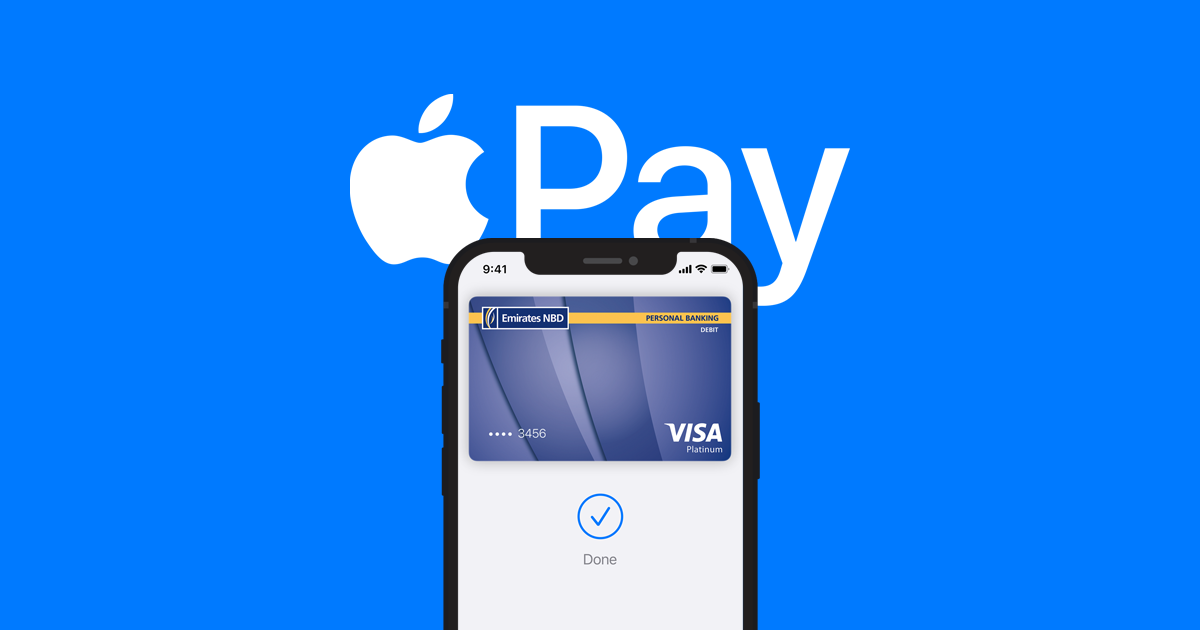
Setting up and using Apple Pay is a breeze! It allows you to make contactless payments with your iPhone, Apple Watch, iPad, or Mac. Here’s how to get started:

Setting Up Apple Pay:

  1. Add your Cards:
    • iPhone: Open the Wallet app and tap the “+” button. Choose “Debit or Credit Card” and either scan your card with the camera or enter the details manually. Follow the on-screen instructions to verify your card with your bank.
    • Apple Watch: On your paired iPhone, open the Apple Watch app. Go to “My Watch” > “Wallet & Apple Pay” > “Add Card” and follow the same steps as on iPhone.
    • iPad/Mac: Go to Settings > Wallet & Apple Pay. Tap “Add Card” and proceed as you would on iPhone.
  2. Customize Settings:
    • Double-Click Button: On iPhone with Face ID, you can access your cards by double-clicking the side button. Go to Settings > Wallet & Apple Pay to activate this feature.
    • Default Card: Choose your preferred card for payments in Settings > Wallet & Apple Pay.
    • Allow Payments on Mac: This lets you confirm payments on your Mac using your iPhone. Enable it in Settings > Wallet & Apple Pay on your iPhone.

Using Apple Pay:

  1. In Stores: Look for the contactless symbol or the words “Apple Pay accepted” at checkout. Hold your iPhone or Apple Watch near the payment reader until you see a green checkmark on your device.
  2. Online and in Apps: Look for the Apple Pay logo at checkout. Choose your preferred card and then authenticate the payment using Face ID, Touch ID, or your passcode.

Additional Tips:

  • You can add multiple cards to your Apple Pay wallet and easily switch between them.
  • Apple Pay is secure and doesn’t store your full card number on your device.
  • You can check your transaction history within the Wallet app on your iPhone or Apple Watch.

Share
What do you think?
Happy0
Sad0
Love0
Surprise0
Cry0
Angry0
Dead0

WHAT'S HOT ❰

Samsung confirms Exynos 2700 for Galaxy S27
Portronics Aero 10 power bank offers integrated cable convenience
OpenAI GPT-5.6 rumors point to stronger reasoning and context
WhatsApp brings back message animations on iPhone with new toggle
CMF Phone series faces uncertain future amid rising RAM costs
AbsoluteGeeks.com — assembled by Absolute Geeks Media FZE LLC during a caffeine incident. © 2014–2026. All rights reserved.
Follow US
AbsoluteGeeks.com was assembled during a caffeine incident.
© Absolute Geeks Media FZE LLC 2014–2026.
Proudly made in Dubai, UAE ❤️
Upgrade Your Brain Firmware
Receive updates, patches, and jokes you’ll pretend you understood.
No spam, just RAM for your brain.
Welcome Back!

Sign in to your account

Username or Email Address
Password

Lost your password?