
TL;DR: You can connect Canva to ChatGPT and generate a fully designed presentation in minutes using simple natural-language prompts. Once Canva is selected as a tool, ChatGPT plans the structure, writes the content, and builds the slides for you automatically. You can then open the deck in Canva to tweak text, visuals, colors, and layout, or refine it further with follow-up prompts. The entire workflow works on free accounts, skips the blank-slide struggle, and turns presentation-making from a time sink into a quick, surprisingly fun process.
Canva in ChatGPT
I’ve lost actual years of my life to presentations. Sales decks that never closed, class projects that peaked at “acceptable,” startup pitches that looked like they were designed during a power outage. The worst part was never the content — it was always the blank slide staring back at me like, “So… Arial or Calibri?”
Then Canva quietly moved into ChatGPT’s neighborhood, and suddenly presentation-building went from an endurance test to a speedrun. I’m talking minutes, not hours, and yes, you can do it for free.
Here’s how I use Canva inside ChatGPT to spin up a polished, presentation-ready deck faster than my coffee gets cold — with brand-new prompts and real-world examples you can steal immediately.
Why Canva Inside ChatGPT Is a Cheat Code (Not Just Another AI Toy)
Normally, making a presentation is three different jobs pretending to be one. First you plan the story. Then you write the content. Then you wrestle with layouts, spacing, fonts, and whether that one slide looks “off” or if you’re just tired.
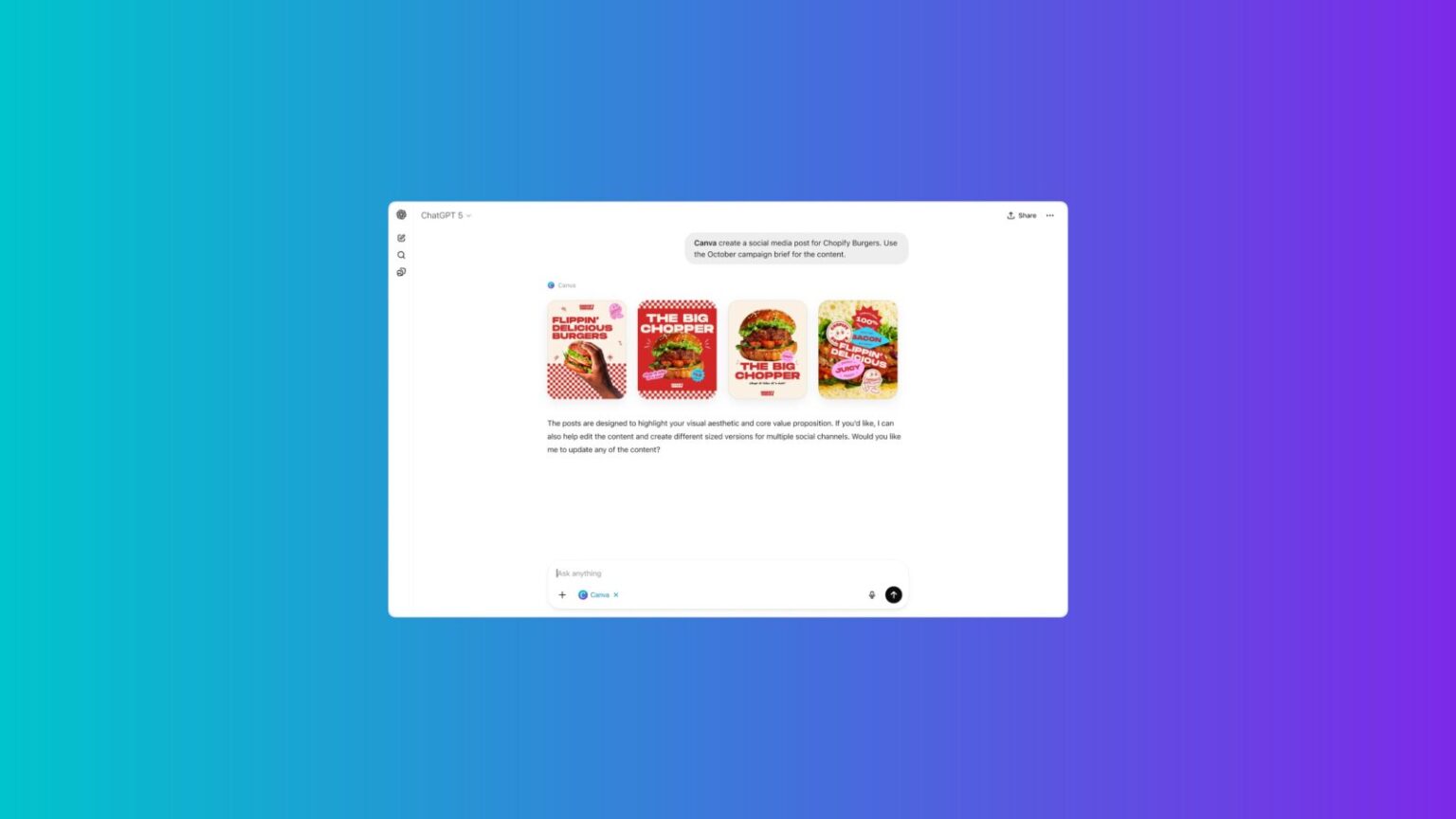
Canva in ChatGPT collapses all of that into a single action. You describe what you want, and ChatGPT generates an actual Canva design — fully structured, visually consistent, and ready to edit.
You’re not getting an outline. You’re getting a deck.
That distinction is everything.
What You Need (Free Still Works)
You only need a ChatGPT account and a Canva account. Both can be on their free tiers. Paid plans unlock extra features, sure, but the core workflow — prompting ChatGPT to generate a Canva presentation — works without spending a cent.
This isn’t a “free trial but not really” situation. It’s genuinely usable as-is.
Step One: Connect Canva to ChatGPT Once
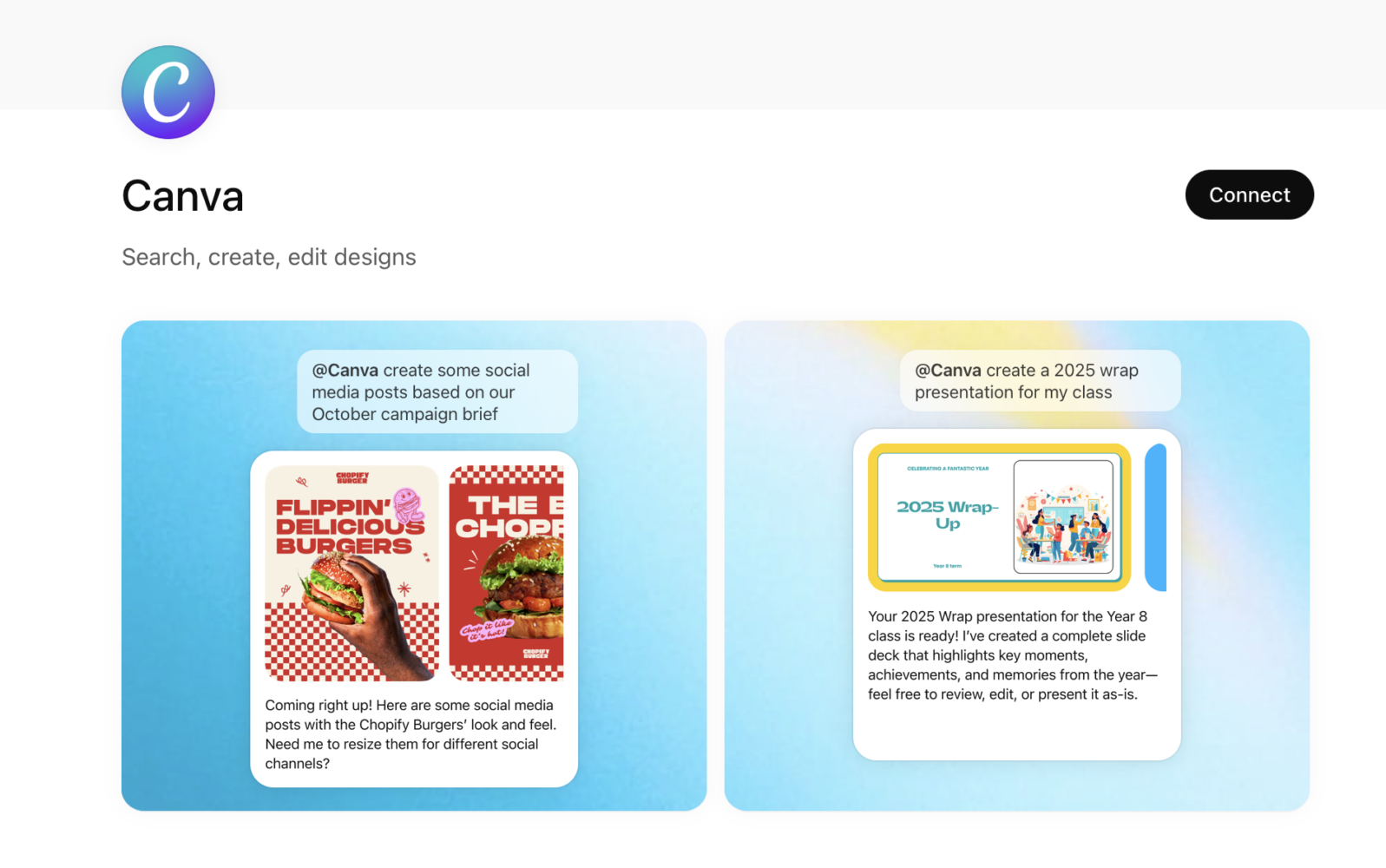
Before you can generate anything, you need to connect your Canva account to ChatGPT.
Inside ChatGPT, head to Settings, then Apps and connectors, find Canva, and connect it. Sign in to Canva when prompted, approve the connection, and you’re done.
From this point forward, ChatGPT can create Canva designs for you anytime you ask. Presentations, social posts, one-pagers, posters — if Canva can make it, ChatGPT can trigger it.
Step Two: Tell ChatGPT You Want a Canva Design
This step is small but crucial. ChatGPT won’t assume you want a Canva output unless you tell it.
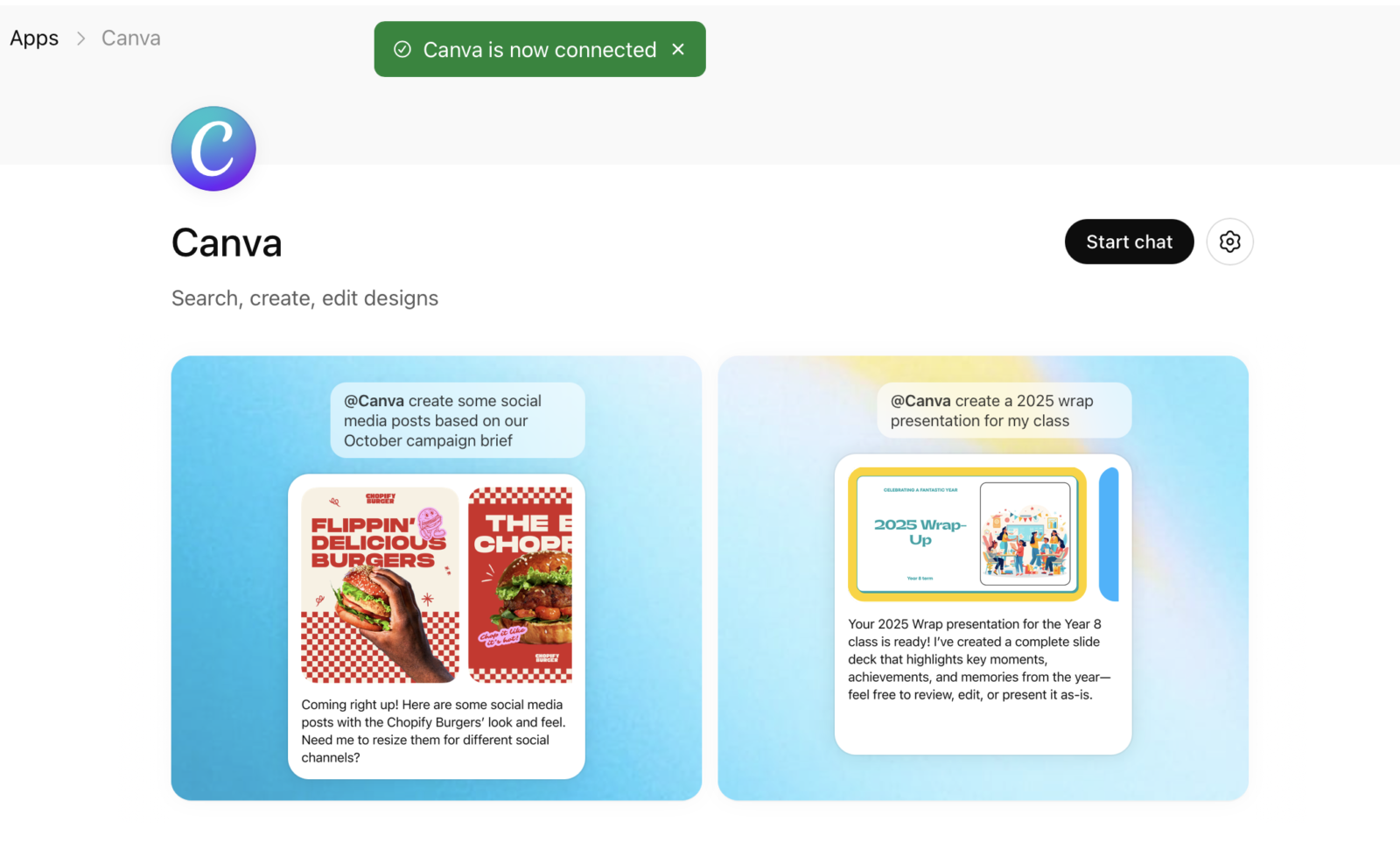
You can do that in one of two ways. Either start your prompt with the word “Canva,” or select Canva from the tool picker next to the prompt field.
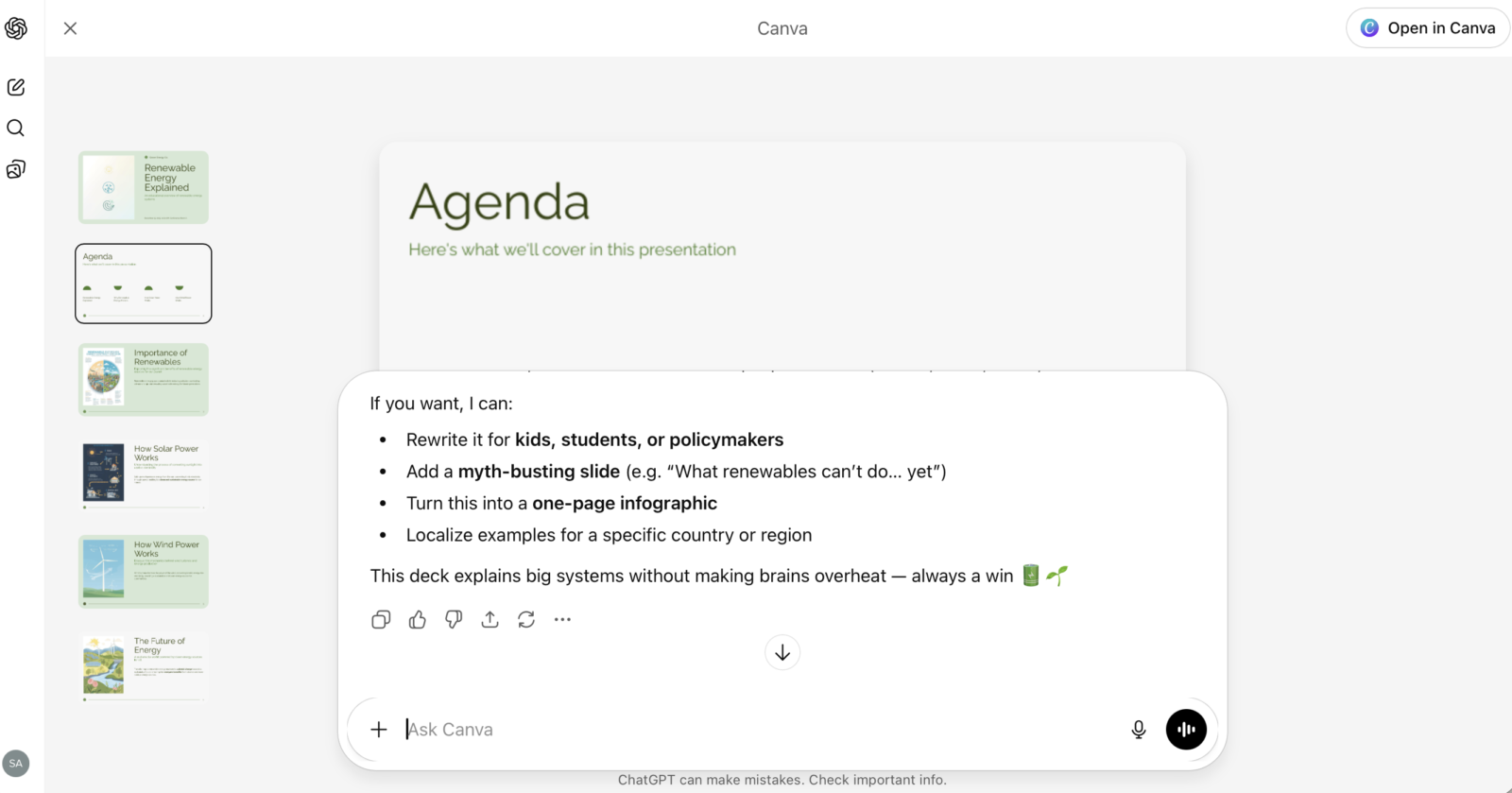
Once Canva is selected, ChatGPT knows to generate a design instead of just text. You’ll see the Canva logo appear, which is your signal that things are about to get visual.
Step Three: Write a Prompt That Thinks in Outcomes, Not Slides
This is where people either unlock the magic or get something mediocre.
You don’t need to specify slide counts, layouts, or bullet points. What you do need is clarity about purpose, audience, and tone. Think like a creative director, not a designer.
Here are a few completely new prompt examples you can use or adapt immediately.
Example 1: Startup Pitch Deck
You’re pitching an early-stage SaaS tool to potential investors.
Prompt:
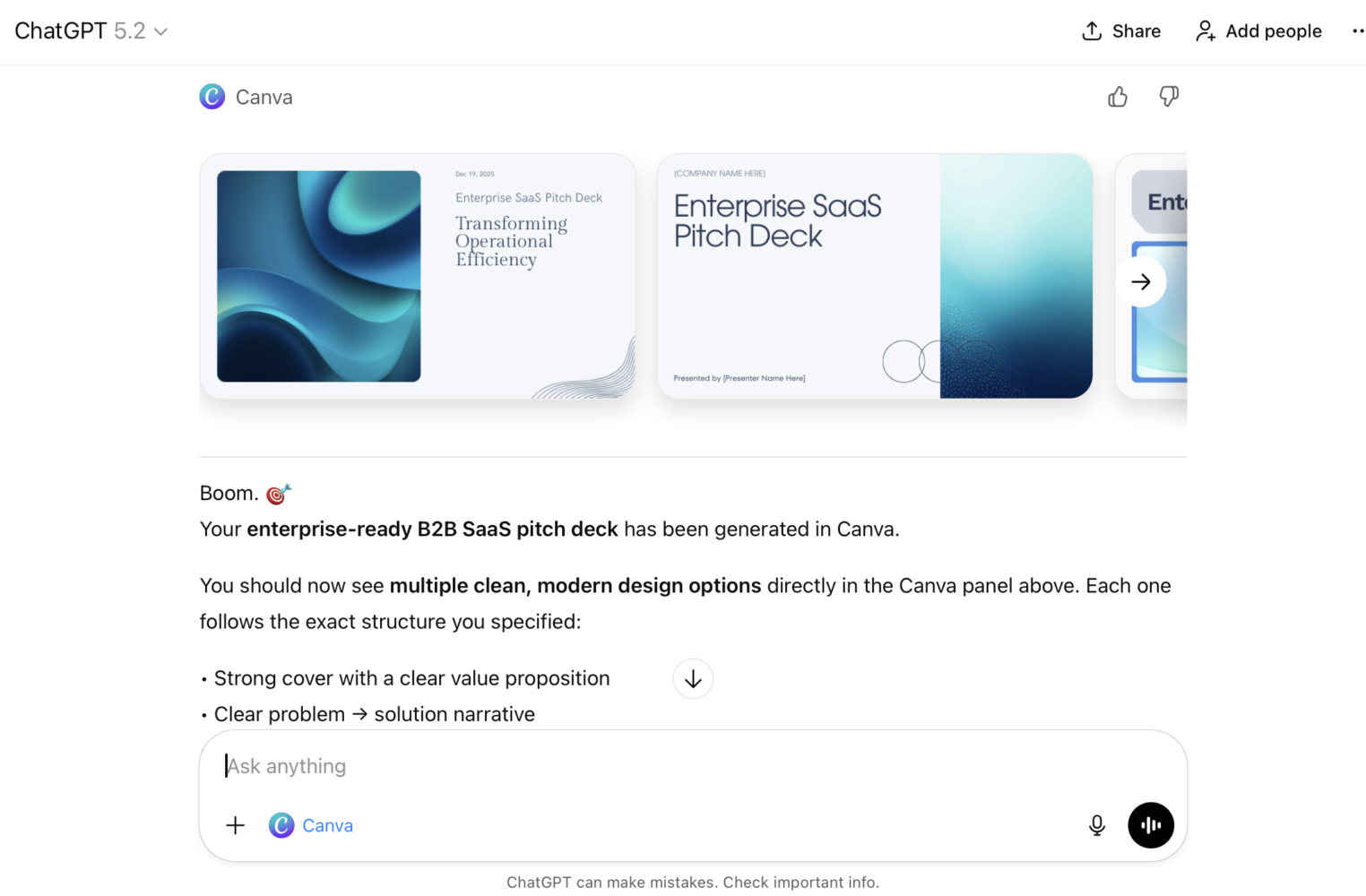
“Canva, create a clean, modern pitch deck for a B2B SaaS startup. The presentation should include a problem overview, solution, product features, target market, business model, competitive landscape, and a closing slide for next steps. The tone should be confident, professional, and forward-looking, with visuals that feel tech-focused and minimal.”
Example 2: Training Presentation for Work
You need to onboard new hires quickly.
Prompt:
“Canva, turn this onboarding guide into a presentation for new team members. Structure it with an introduction to the company, team roles, tools we use, workflow expectations, and company values. Make the design friendly and approachable, but still professional, and easy to present live.”
Example 3: School or University Presentation
You’re explaining a complex topic and need clarity.
Prompt:
“Canva, create a presentation explaining how renewable energy systems work for a general audience. Include sections on solar, wind, and hydro power, with simple explanations and visual metaphors. Keep the tone educational but engaging, and make the slides easy to understand at a glance.”
The secret sauce is giving ChatGPT enough context to decide what the slides should be, instead of forcing you to decide first.
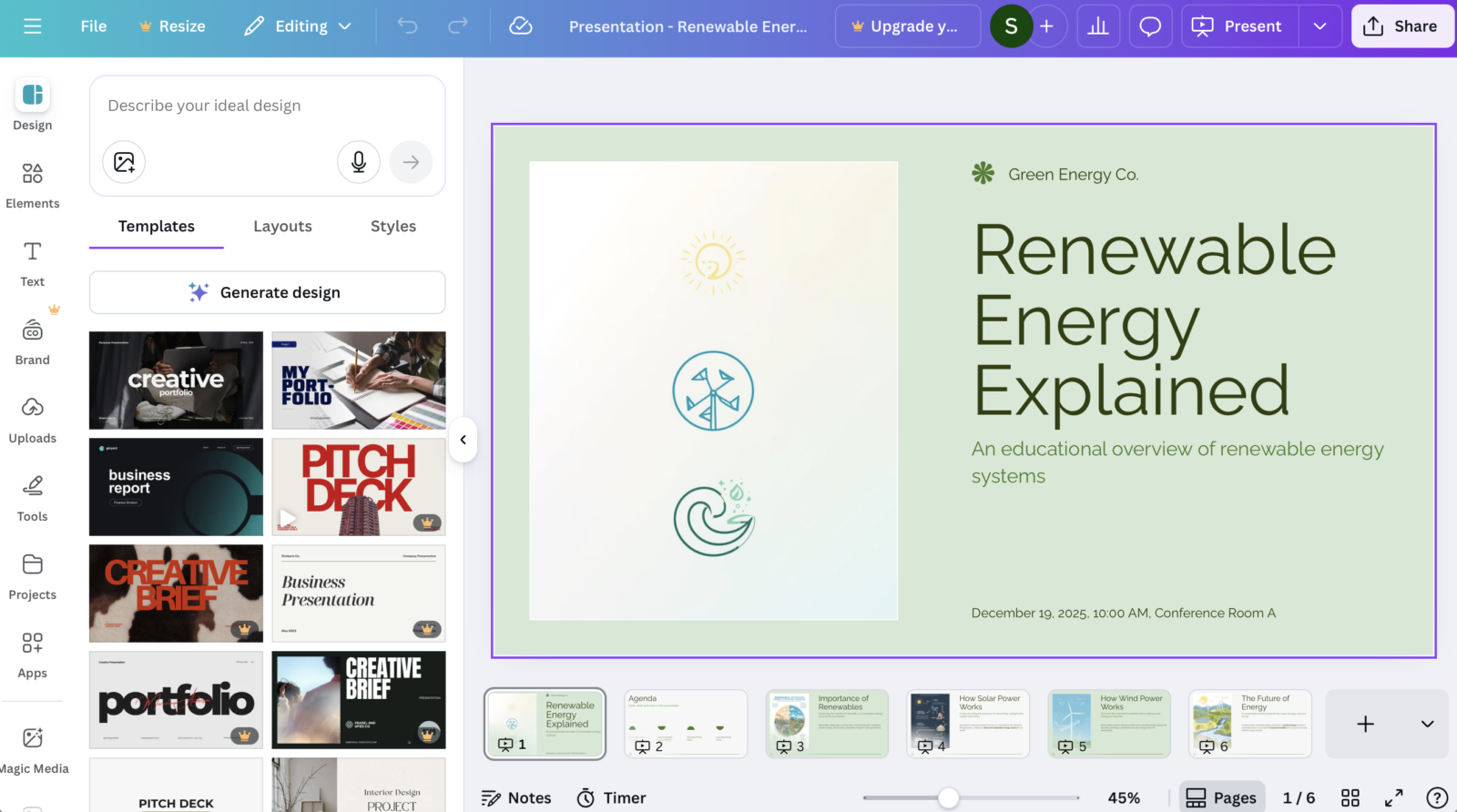
Step Four: Open the Canva Presentation and Scan for Structure
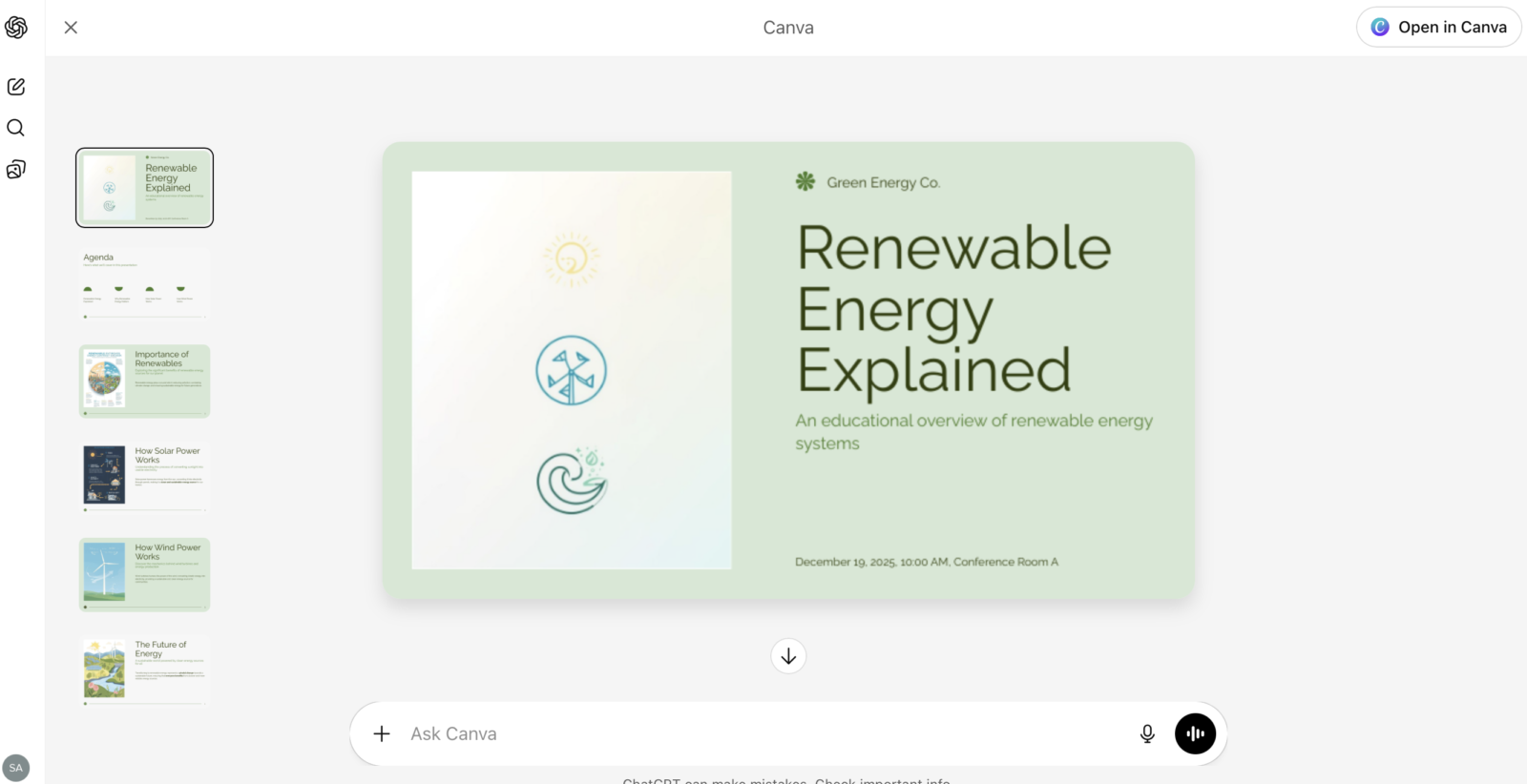
Once ChatGPT finishes, you’ll see slide previews and a link to open the design in Canva. Click it, and the full presentation loads instantly in your Canva workspace.
This is where you sanity-check the big things. Does the story flow? Are the sections in the right order? Does it feel like something you’d actually present?
In my experience, the structure is almost always solid on the first pass. Even when the visuals aren’t perfect, the narrative usually is.
That alone saves an absurd amount of time.
Step Five: Customize Like a Human (This Is the Fun Part)
Now you take over.
Inside Canva, you can swap images, tweak colors, adjust fonts, rewrite text, add or remove slides, or rearrange sections. If you want to stay hands-off, you can also jump back into ChatGPT and ask for refinements, like making the design more playful, more formal, more bold, or more minimalist.
Personally, I use ChatGPT to get me to 80 or 90 percent, then I finish the rest manually in Canva. It’s faster and gives me a stronger sense of ownership over the final result.
Think of ChatGPT as your layout-and-structure engine, not your final editor.
Step Six: Share, Present, or Export Without Friction
Once you’re happy, Canva handles distribution beautifully. You can present directly from Canva, generate a shareable link, download the deck in multiple formats, or even record a narrated version.
No exporting gymnastics. No broken fonts. No “why did this shift when I opened it on another computer?”
It just works.
The Real Reason This Feels So Fast
Using Canva in ChatGPT doesn’t just speed up design. It eliminates the most paralyzing part of presentation-making: starting.
You’re no longer building from zero. You’re reacting, refining, and improving something that already exists — and that shift alone can turn a two-hour task into a ten-minute one.
Once you try it, going back to blank slides feels barbaric.