

As everyone dusts off their planners, habit trackers, and “this is the year I’ll finally be organized” energy, iPadOS 26 quietly rolled in like, “Cool, I’ll just make your entire workflow better while you weren’t looking.”
So yeah — consider this my contribution to the New Year glow-up discourse. Here are 10 iPad features you might have missed, but absolutely shouldn’t sleep on if you want your iPad to feel less like a big iPhone and more like the productivity-and-creativity command center it was always meant to be.
1. The new windowing system finally makes multitasking feel human
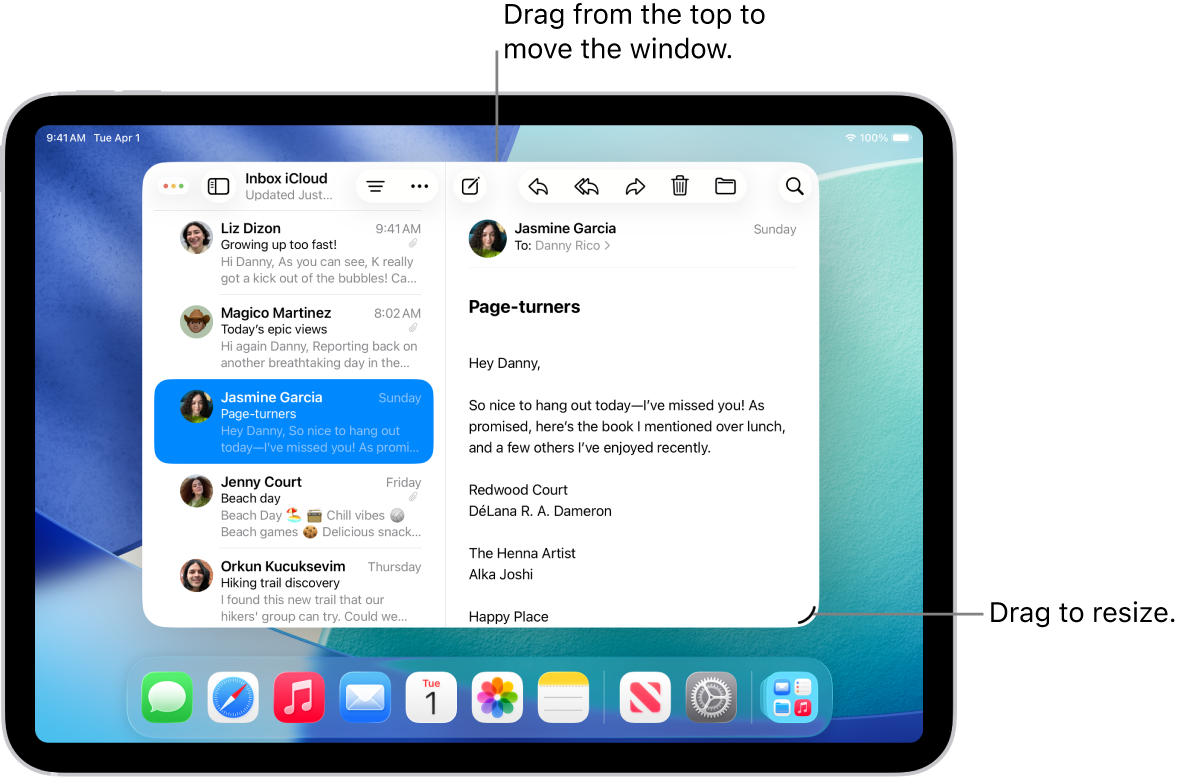
Apple has spent years threading the needle between simplicity and power on iPad, and iPadOS 26 is where that balance finally clicks. The new windowing system feels less like toggling modes and more like physically arranging your workspace. Windows resize smoothly, layer naturally, and move exactly where your attention wants them to go — without snapping you into rigid layouts unless you ask for them.
The flick gestures are what make it all feel alive. Flick a window upward and it flows into full screen. Toss an app to the edge and it snaps into a clean side-by-side view. There’s no learning curve wall here — just momentum. Multitasking stops feeling like a feature you activate and starts feeling like the default state of thinking on iPad.
2. Multiple windows of the same app unlock real workflows
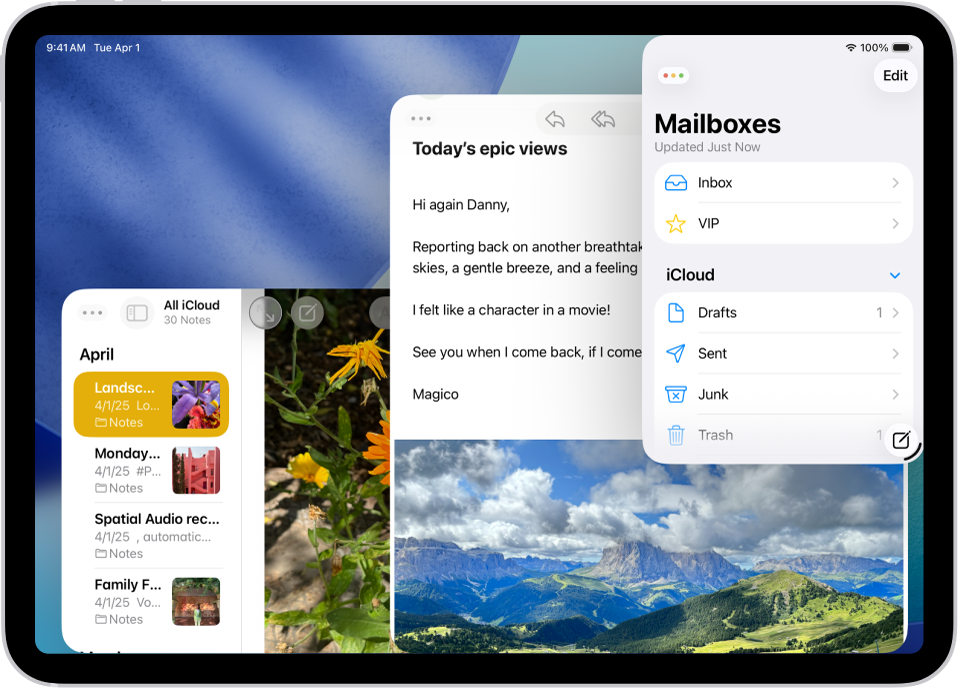
This is one of those quietly transformative changes Apple doesn’t shout about, but power users instantly feel. In iPadOS 26, you can tap and hold an app icon and open a New Window, giving you multiple instances of the same app running side by side.
Two Safari windows mean research no longer tramples writing. Multiple Mail windows let you reference threads while drafting replies. Notes becomes a living workspace instead of a single canvas. It’s the difference between juggling tasks and actually working — and once you use it, it’s impossible to go back.
3. Slide Over evolves into a background brain
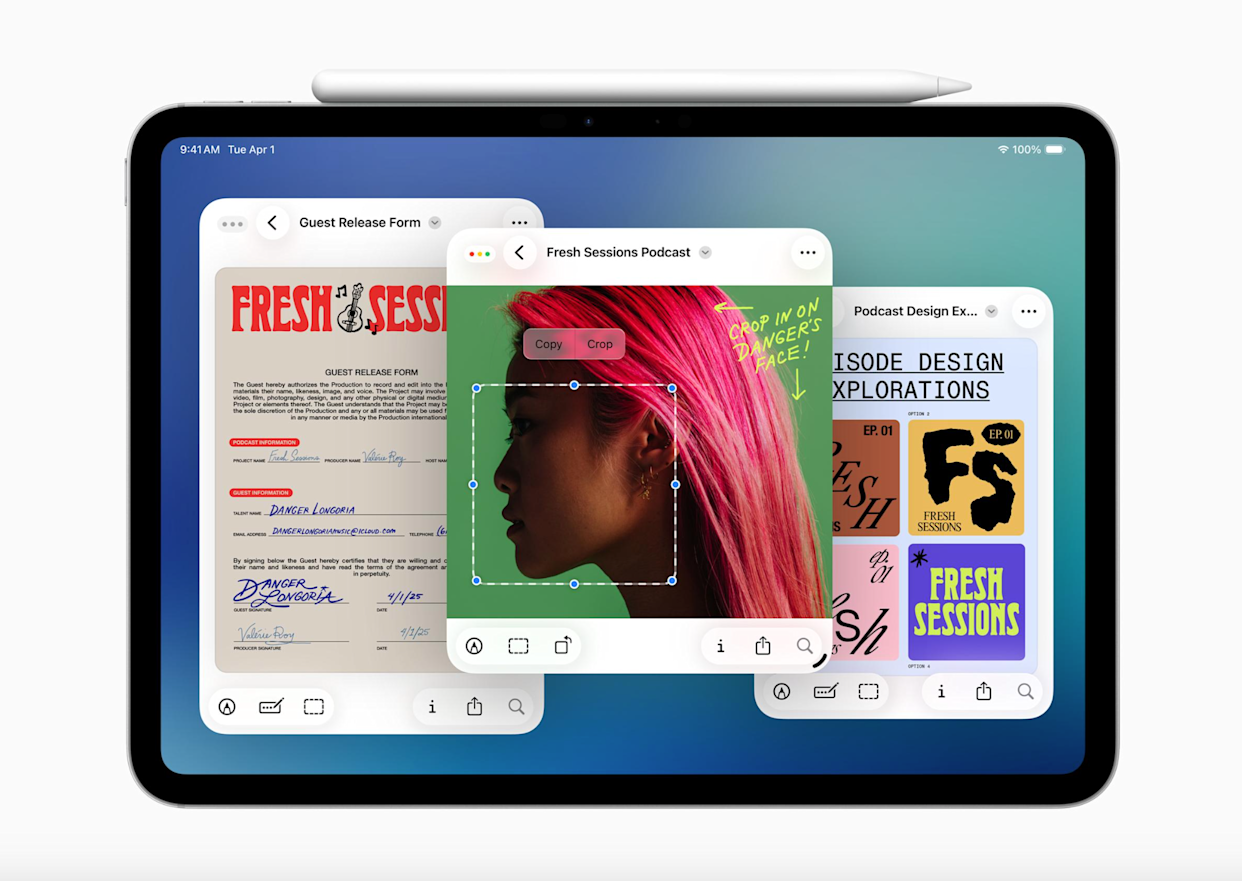
Slide Over has always been useful, but iPadOS 26 makes it feel intentional. You can keep one app floating above everything else, ready at a moment’s notice, then move it completely off screen until it’s needed again. It’s like having a mental sticky note you can summon instantly.
Messages, music, calculators, reference apps — Slide Over becomes the layer that supports your main focus instead of interrupting it. Over time, it fades into muscle memory, which is exactly what great UI should do.
4. Files finally respects how you want to work

The Files app gets smarter in iPadOS 26 in a way that immediately benefits everyday workflows. Tap and hold a file and choose Open With to decide exactly which app handles it. Dig a little deeper into Get Info, and you can even assign default apps for specific file types.
This is subtle, but important. It shifts Files from being a passive storage hub to an active part of your workflow. PDFs, images, and documents now open the way you expect — not the way the system guesses.
5. Folder customization makes organization visual
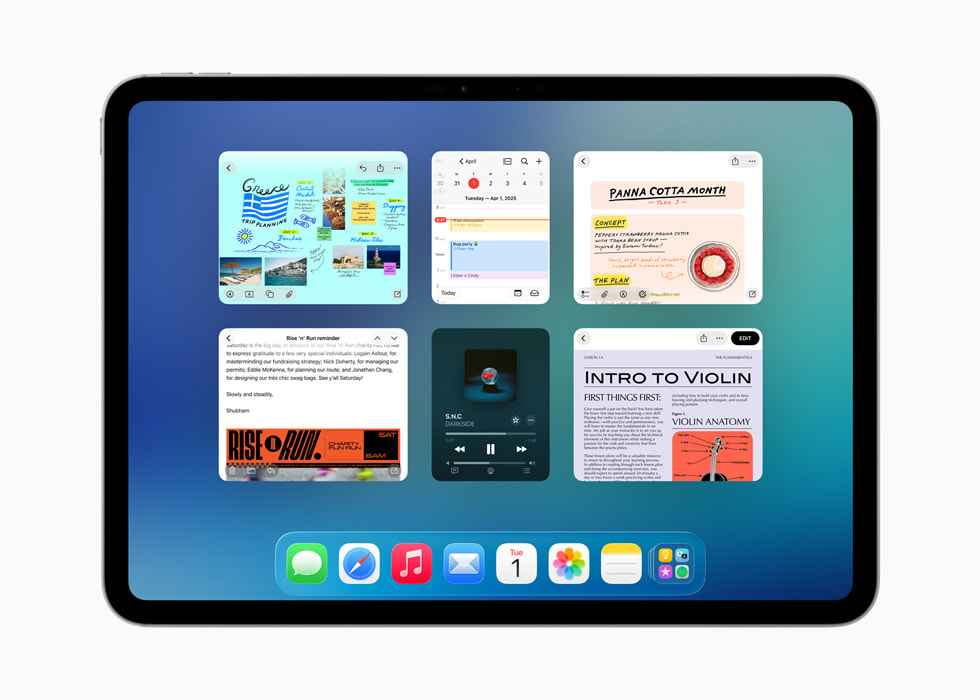
With iPadOS 26, folders can finally look the way they function. You can assign colors, icons, and emoji to folders, and those choices sync across iPadOS, iOS, and macOS. It’s playful on the surface, but deeply practical in use.
Your brain processes color and symbols faster than text, and Apple is finally leaning into that. Work folders, creative projects, personal files — everything becomes easier to identify at a glance. Organization becomes intuitive instead of tedious.
6. Dock folders turn the Dock into a workflow hub
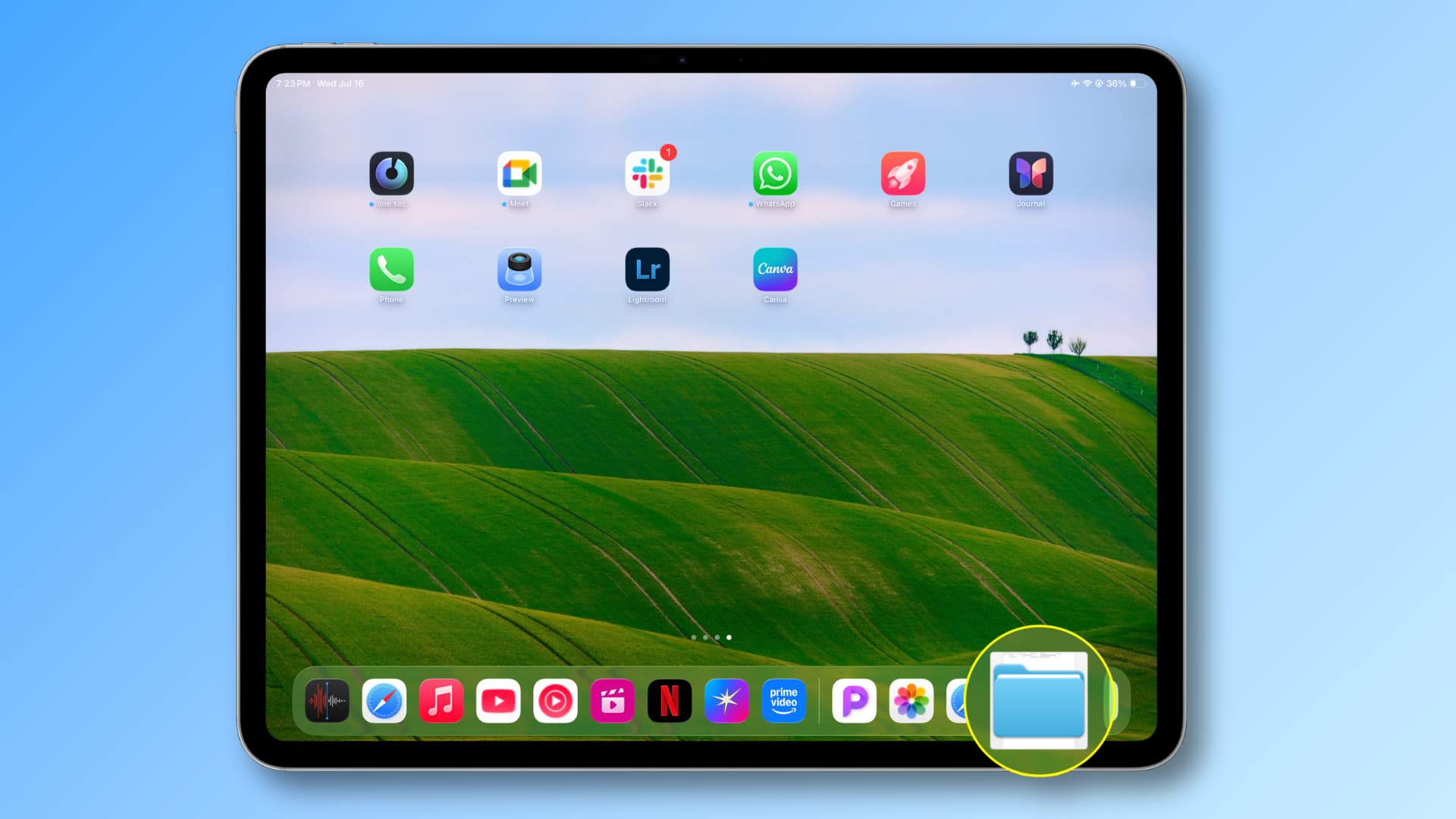
Dragging folders from Files directly into the Dock sounds simple, but it fundamentally changes how you move content around iPadOS. You can access key folders from anywhere, drag files straight into them from apps, and expand folders in place without breaking focus.
The Dock stops being a launcher and starts acting like a command strip. If you work with active projects, this feature quietly becomes indispensable.
7. The menu bar makes pro features discoverable
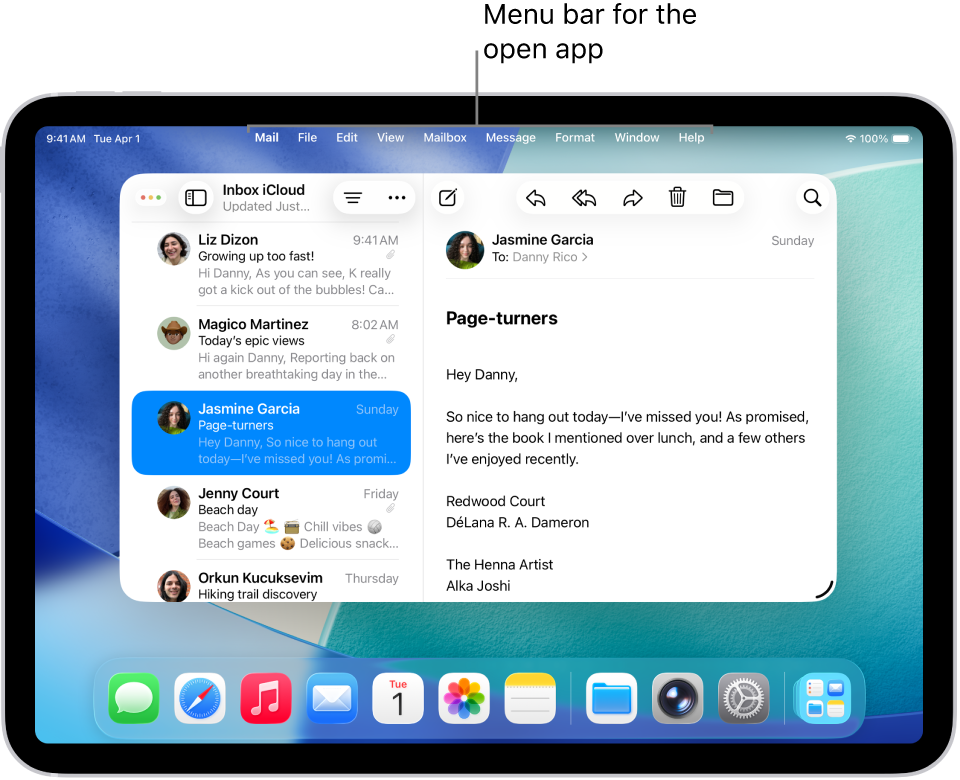
Swipe down from the center of the top edge and the new menu bar appears, dynamically adapting to whatever app you’re using. Commands that were once hidden behind gestures or buried settings are now visible and logically grouped.
It’s a very “Apple” solution — adding power without visual clutter. Apps feel deeper, not heavier, and the iPad edges closer to desktop-class clarity without losing its identity.
8. Lock Screen Quick Notes turn ideas into reflexes
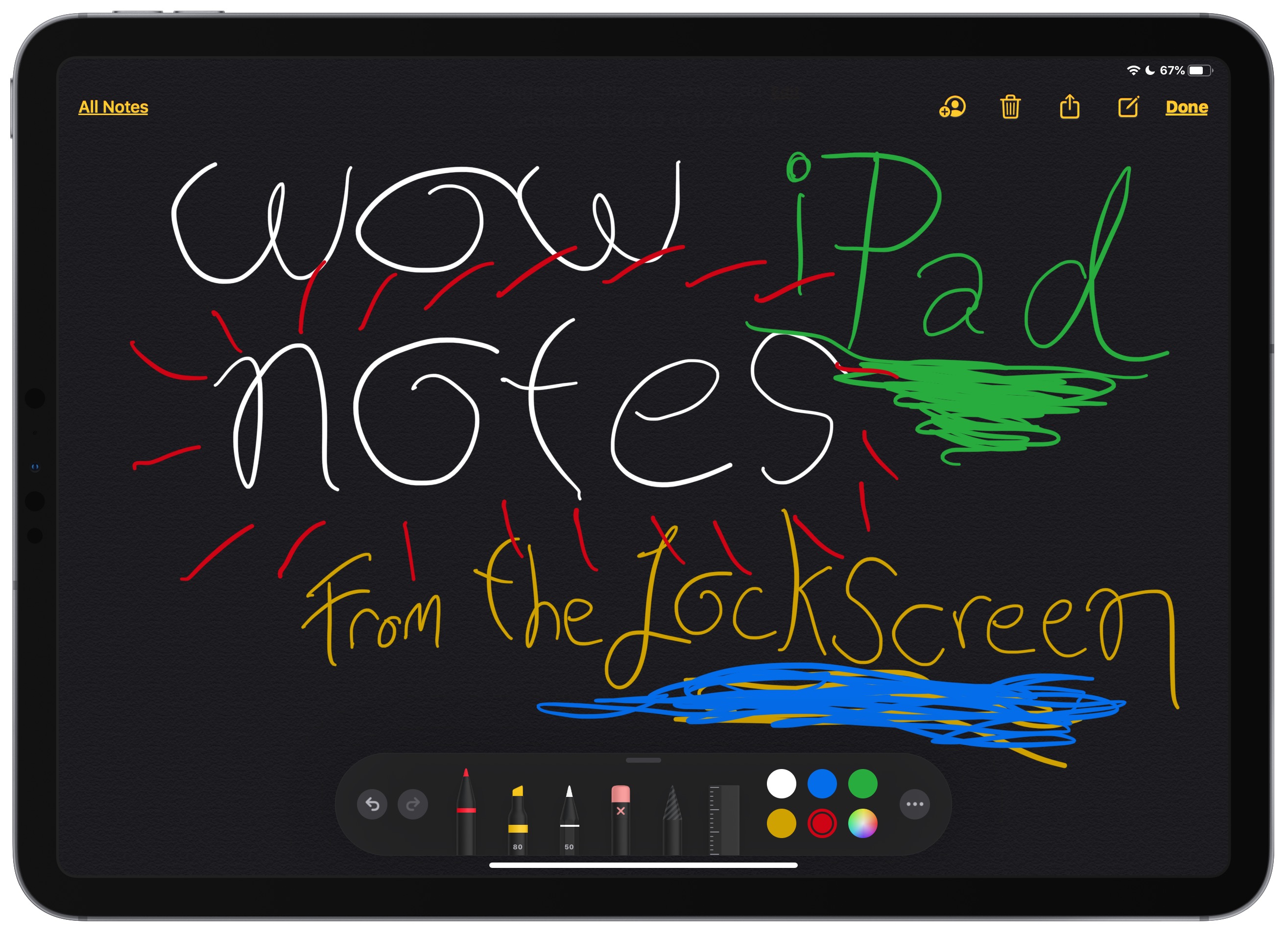
Tap your locked iPad with Apple Pencil and you’re instantly in a Quick Note. No authentication hurdles, no app decisions, no lost ideas. This is one of those features that changes behavior rather than just capability.
You stop thinking about how to capture ideas and just capture them. That alone makes the iPad feel more like a creative tool than a device.
9. Shape recognition polishes your thinking
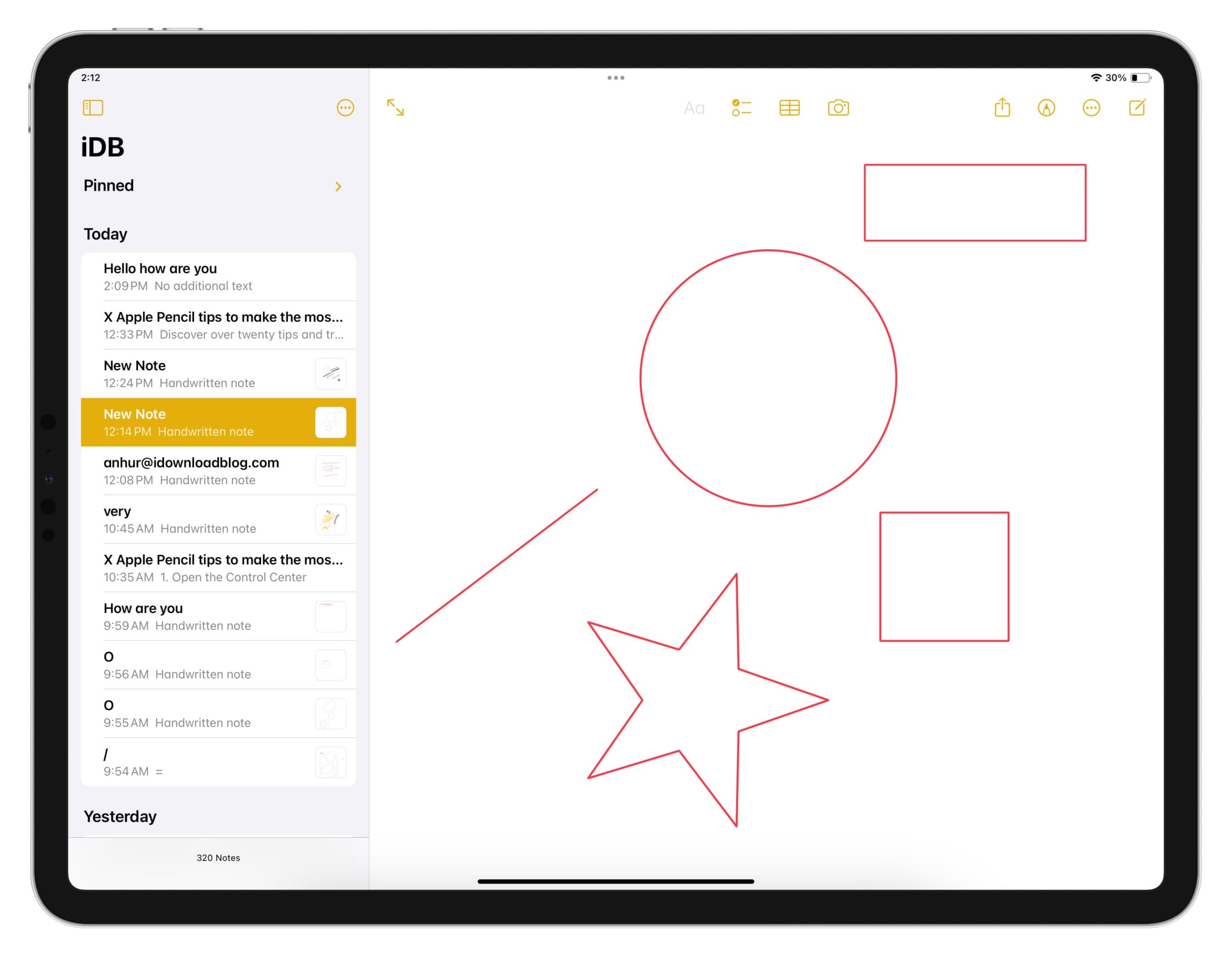
Draw a rough line, circle, arrow, or star, pause briefly, and iPadOS transforms it into a clean geometric shape — preserving the size and angle you intended. It’s refinement without interruption.
For diagrams, notes, planning, and visual thinking, this feature quietly elevates everything you create. Your ideas look clearer, and clarity changes how seriously they’re taken.
10. Image Wand turns context into visuals

Image Wand feels like Apple flexing its understanding of creative flow. Circle a rough sketch — or even empty space — and Notes generates an image that fits the surrounding content. You never leave the app, never break focus, never lose momentum.
It’s not about replacing creativity; it’s about accelerating it. For brainstorming, teaching, storytelling, or early concepting, Image Wand feels quietly revolutionary.
Final thought
iPadOS 26 doesn’t rely on spectacle. Instead, it layers thoughtful improvements that compound over time. Each feature removes friction, respects intent, and nudges the iPad closer to being whatever you need it to be — planner, studio, workstation, or notebook.