

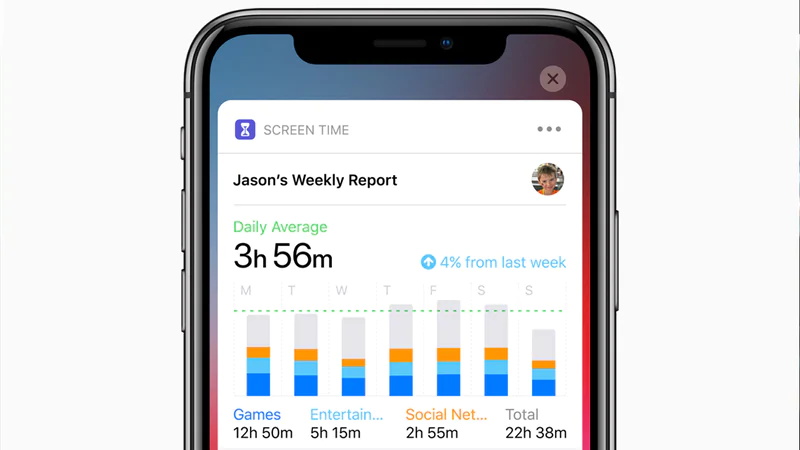
Here are the steps on how to use Screen Time on iOS:
- Go to Settings and tap Screen Time.
- If you’re not using Family Sharing to manage a child account, tap Turn on Screen Time. If you are using Family Sharing, scroll down and choose your child’s name under Family.
- Tap Continue.
- Set up Downtime, App Limits, and Content & Privacy with the limitations that you want for your device. You can also tap Not Now if you don’t want to set up any limits right now.
- Tap Use Screen Time Passcode, then enter a passcode when prompted. Re-enter the passcode to confirm.
- Enter your Apple ID and password. This can be used to reset your Screen Time passcode if you forget it.
Once you’ve set up Screen Time, you can use it to track your usage, set limits on how much time you spend on certain apps, and more. Here are some of the things you can do with Screen Time:
- See how much time you spend on your device. Tap Screen Time at the top of the screen to see a breakdown of how much time you’ve spent on each app, website, and category of apps.
- Set limits on how much time you spend on certain apps. Tap App Limits and then tap the app you want to limit. You can choose to limit the app for a certain amount of time each day or week, or you can block the app altogether.
- See which apps are using the most data. Tap Data & Privacy and then tap Cellular Data. You can see a list of all the apps that have used data in the past week or month.
- See which apps are using the most battery. Tap Battery and then tap Battery Usage. You can see a list of all the apps that have used the most battery in the past 24 hours or 7 days.
- Set up Downtime. Downtime is a feature that lets you block all apps and notifications except for a few exceptions you choose. This can be helpful if you want to focus on something else, like studying or spending time with family. To set up Downtime, tap Downtime and then choose the days and times you want it to be active.
- Set up App Limits for your children. If you’re using Family Sharing, you can set up App Limits for your children’s devices. This will let you control how much time they can spend on each app. To set up App Limits for your children, tap Screen Time on their device and then tap Set Up Screen Time for a Child.
Screen Time is a powerful tool that can help you take control of your screen time. By using Screen Time, you can learn more about how you’re using your device and make changes to your habits if you need to.